# Version Access Requests

The Limit Access to Asset Versions feature allows Administrators to control which asset formats or renditions (e.g., original, web-optimized, watermarked) a specific User Group can view or download. For any restricted versions, Light users (e.g General Staff...) are required to go through the Request Access workflow to obtain permission.

This guide helps you master the features and workflow for asset version access, including:

<table data-card-size="large" data-view="cards"><thead><tr><th></th><th></th><th data-hidden data-type="content-ref"></th></tr></thead><tbody><tr><td><h4><a href="https://support.hivo.co/approvals/version-access-requests#how-to-admins-limit-access-request-for-groups">How to Admin limit access request for groups</a></h4></td><td>How to configure version access limitations for specific user groups</td><td><a href="https://support.hivo.co/approvals/version-access-requests#how-to-admins-limit-access-request-for-groups">https://support.hivo.co/approvals/version-access-requests#how-to-admins-limit-access-request-for-groups</a></td></tr><tr><td><h4><a href="https://support.hivo.co/approvals/version-access-requests#how-to-light-users-general-staff-send-access-requests">How to user send Access Requests</a></h4></td><td>The process for Light Users to request access to versions other than those currently authorized</td><td><a href="https://support.hivo.co/approvals/version-access-requests#how-to-light-users-general-staff-send-access-requests">https://support.hivo.co/approvals/version-access-requests#how-to-light-users-general-staff-send-access-requests</a></td></tr><tr><td><h4><a href="https://support.hivo.co/approvals/version-access-requests#how-to-admin-handle-access-requests-1">How to Admin handle Access Requests</a></h4></td><td>Reviewing and processing access requests, including adding/removing assets or versions and setting access expiration dates</td><td><a href="https://support.hivo.co/approvals/version-access-requests#how-to-admin-handle-access-requests">https://support.hivo.co/approvals/version-access-requests#how-to-admin-handle-access-requests</a></td></tr><tr><td><h4><a href="https://support.hivo.co/approvals/version-access-requests#track-and-manage-asset-instance-access-requests">How to manage Access Requests</a></h4></td><td>Tracking, managing, and bulk-processing all requests within the Approval section</td><td><a href="https://support.hivo.co/approvals/version-access-requests#track-and-manage-asset-instance-access-requests">https://support.hivo.co/approvals/version-access-requests#track-and-manage-asset-instance-access-requests</a></td></tr></tbody></table>

## How to Admins limit access request for groups?

⚠️ Important Note: The system provides 2 levels of asset version access restriction, including:

* [**Restrict access using allowed versions**:](https://support.hivo.co/approvals/version-access-requests#level-1-restrict-access-using-allowed-version-default-limit-access-rules) This can be bypassed if the user is granted an Asset permission of 'Can Share' or higher, or holds the 'Can View Image Original Versions' user right.
* [**Additional Rules (Custom Feature)**](https://support.hivo.co/approvals/version-access-requests#level-2-additional-rules-custom-feature)**:** Features an anti-bypass mechanism; the restriction remains active even if the user is granted an Asset permission level of 'Share' or higher, or holds the 'Can View Image Original Versions' user right."

👉 Path: Go to Client Profile -> Groups tab -> Click the **3-dots icon** to further modify its specific settings -> Go to the **Edit Group tab** and scroll to the **Group Settings** section.&#x20;

### 1. Level 1 - Restrict access using allowed version (Default Limit Access Rules)

For this access request process to work, tthe setting '**Limit Access to Asset Versions**' must be enabled within their User Group. Then, Admins needs to **select the asset version** that is allowed to access.

<figure><img src="/files/HeSuPypFAvcZwwJ7VuMM" alt=""><figcaption></figcaption></figure>

This will not affect Users viewing an Asset:

* If they have the User Right '***Can View Image Original Versions'*** - when viewing an original image version.
* Any higher permissions (**e.g., Can Share, Can Edit, Full Access**) will disable this version access limitation feature.

<figure><img src="/files/p8W6HLl4M7Hpp2GYU90d" alt=""><figcaption></figcaption></figure>

### 2. Level 2 - Additional Rules (Custom Feature)

⚠️ Note: This is a Specialized Custom Feature and is currently only enabled for select organizations/clients. If this section or button does not appear in your admin interface, please contact your HIVO Admin for further information.&#x20;

<figure><img src="/files/csGONFnDK9gZZwjnDYHd" alt=""><figcaption></figcaption></figure>

#### 2.1. **How it works**

Triggered dynamically based on individual asset attributes (scanned via Tag or Metadata conditions):

* If the Asset **MATCHES** the **Additional Rules:** Once an asset activates the Additional Rules, the system applies the anti-bypass filter and evaluates the following cases:
  * If the rendition **belongs** to the **'Allowed Versions' list**: The user is **permitted to view/download** this specific version (subject to the user rights validation step below).
  * If the rendition **DOES NOT belong** to the 'Allowed Versions' list: The user is **strictly blocked.** They must submit a formal *Version Access Request*, and this restriction cannot be bypassed by having 'Can Share' or higher permissions.
* If the Asset **DOES NOT MATCH** the **Additional Rules**: The system falls back to the standard Level 1 restriction logic (*Restrict access using allowed versions*).

#### 2.2. **Aditional Rules Setup (Only if enabled for your organization)**

* **Add a New Rule:** Click the **ADD RULE** button at the bottom-left corner of the interface to initialize a new rule block (e.g., *Rule 1*, *Rule 2*).
* **Delete a Rule:** Click the horizontal ellipsis icon (...) on the specific Rule block you wish to delete   -> Select Remove Rule.

<figure><img src="/files/VPE685JsK58SsoNpaxd3" alt=""><figcaption></figcaption></figure>

* **Add Conditions to a Rule:**
  * Click the horizontal ellipsis icon (...) located on the right side of the corresponding Rule block.
  * Select Add Condition from the dropdown menu. You can configure 2 types of conditions:
    * **Metadata Condition:** Select the target field in the Metadata Field dropdown and enter the exact system string in the Equals Value field.
    * **Tag Condition:** Enter the precise keyword identifier in the Contains Tag field.
* **Save Configurations:** Once all rules and conditions are fully configured, click the DONE button at the bottom-right corner to deploy the restrictions. To discard your changes, click CANCEL.

#### 2.3. Examples of how to use 'Additional Rules'

For highly sensitive assets tied to a confidential campaign or legal project (tagged with ***legal*** or assigned a metadata value of Metadata Value = ***approvalRequired***) you want to prevent users from viewing the original high-res asset, while still allowing them to see ***thumbnail*** versions for reference.

You configure an Additional Rule combining a Tag condition (***legal*** and a Metadata condition ( ***approvalRequired***) The moment a sensitive asset is uploaded:

* Standard renditions like ***thumbnail*** remain viewable because they are in the *Allowed Versions* list.
* Any attempt to access the Original or high-res versions will be strictly blocked and require an access request. Elevated asset permissions (*Can Share* or higher) will fail to bypass this safety lock.

<figure><img src="/files/sGGzEqDBa9F0dEFrH1IZ" alt=""><figcaption></figcaption></figure>

### 3. **Validation Based on Approval Status & User Rights (**&#x41;pply for both levels)

Regardless of whether the asset passes the filtering layers above, the system performs a final security validation based on the "***Not restricted to approved-only version***" user right:

<figure><img src="/files/xlwSFE3QvWkvBwvN4JgA" alt=""><figcaption></figcaption></figure>

* If the User **DOES NOT** hold this right: They are strictly prohibited from **viewing any unapproved versions** (they can only see versions marked with a Green Approved Status label). Even if a rendition is explicitly included in the group's *Allowed Versions* list, if that specific asset version has not been approved yet, it remains completely hidden from this user.
* If the User **HOLDS** this right: They can seamlessly **view both approved and unapproved versions.** However, their access boundaries must still strictly comply with the *Allowed Versions* list and the group's global limitation configurations.

#### ❓**When to grant the "Not restricted to approved-only version" right**

To ensure this security check aligns with your business workflow, Admins should consider the following real-world scenarios when configuring permissions for a User Group:

* **DO NOT grant this right to** (Keep Restricted): Regular Employees, Contractors, External Agencies, or New Hires.
  * When you only want them to access finalized, brand-compliant, and fully vetted assets (Green Approved Status). This prevents them from accidentally downloading or using draft versions or outdated files under revision, helping to avoid branding mistakes or legal issues.
* **DO grant this right to**: Content Creators, Designers, Translators, or Quality Assurance (QA) teams.
  * When these departments need to view drafts and compare different edited versions to collaborate and handle approvals before the file is officially released to the entire company.

***

## How to Light Users (General Staff) send Access Requests

When General Staff users need to access other versions of an asset, they should follow these steps:

🔹 **Step 1: Select Asset(s)**

* Select one or more images from the library.

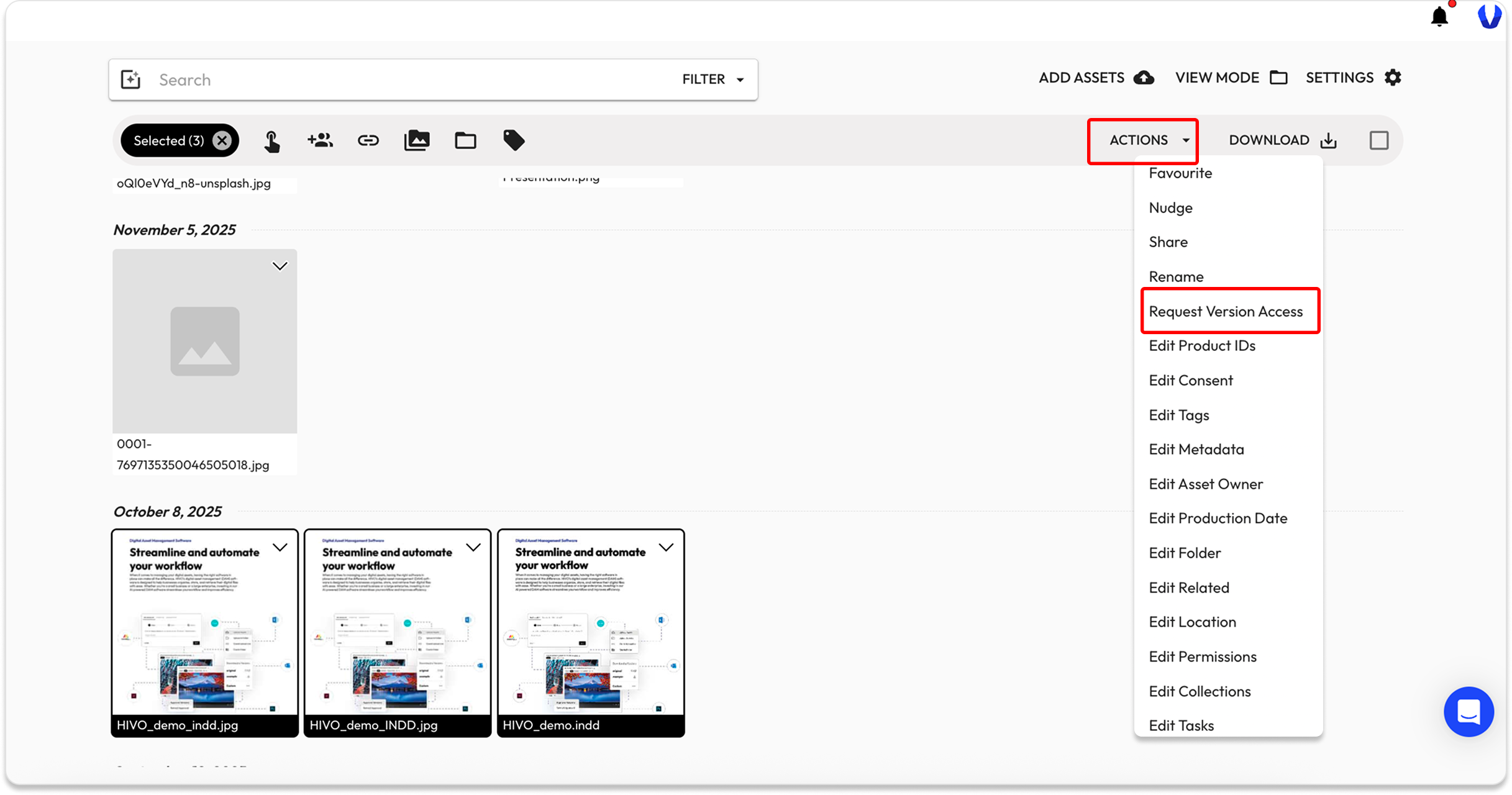
**🔹 Step 2: Request Access via Actions Menu**

* Click on Actions and select **'Request Version Access'.**

<figure><img src="/files/xKWPftlPWlxcAbJ6ViBN" alt=""><figcaption></figcaption></figure>

🔹 **Step 3: Submit Request**

A pop-up window will appear, allowing you to:

* **Add/ Remove asset:** Add or remove previously selected assets.
* **Select Versions:** Select the specific version(s) you need access to.
* **Date Required:** Specify the time period during which the asset is needed for your work.
* **Reason Description:** Enter a brief and clear explanation of why you need access to this version (e.g., "Use for Q3 Email Campaign").
* **Submit Request:** Click Submit (or Apply) to send the request to the Admin.

<figure><img src="/files/g1qhoAb9QHQsdUh3768K" alt=""><figcaption></figcaption></figure>

👉 See the detailed step-by-step instructions below:

{% @howdygo/embed url="<https://app.howdygo.com/share/6570959d-e624-4805-8b80-a0dee4a69884>" %}

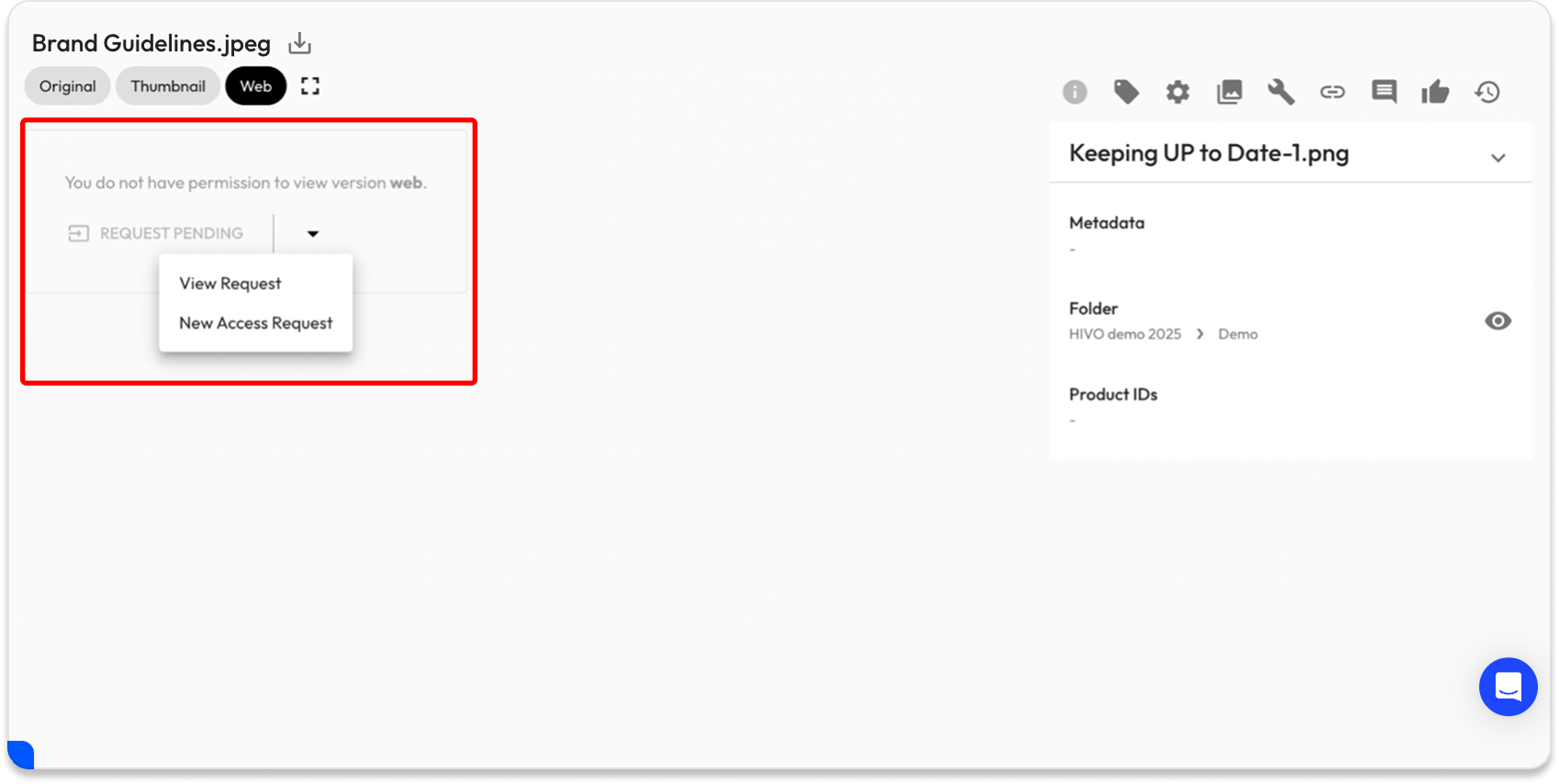
⚠️ Note: You can also request version access for individual assets directly from the Asset Preview Page or the Asset Detail Page.

<figure><img src="/files/f9wprTP07Cx4cHnA2wnE" alt=""><figcaption></figcaption></figure>

***

## How to Admin handle Access Requests

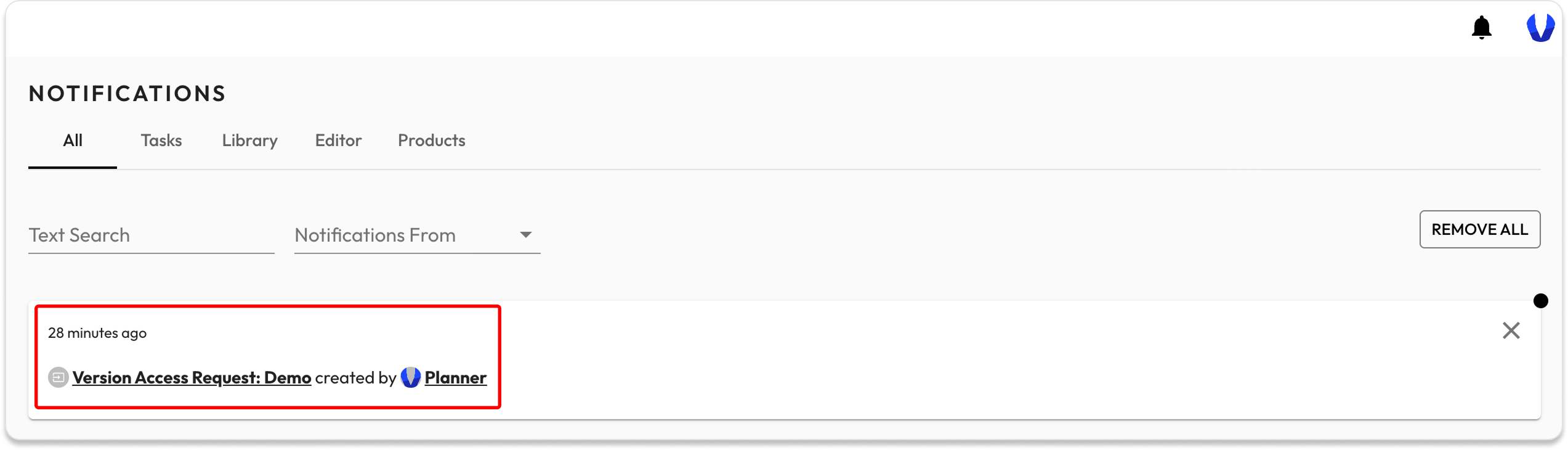
After receiving an in-app or email notification about a new request, the Admin follows these steps to review and process it:

<figure><img src="/files/sCGDvtZSttOXsBTlZNF1" alt=""><figcaption></figcaption></figure>

**🔹 Step 1: Access and Open the Request**

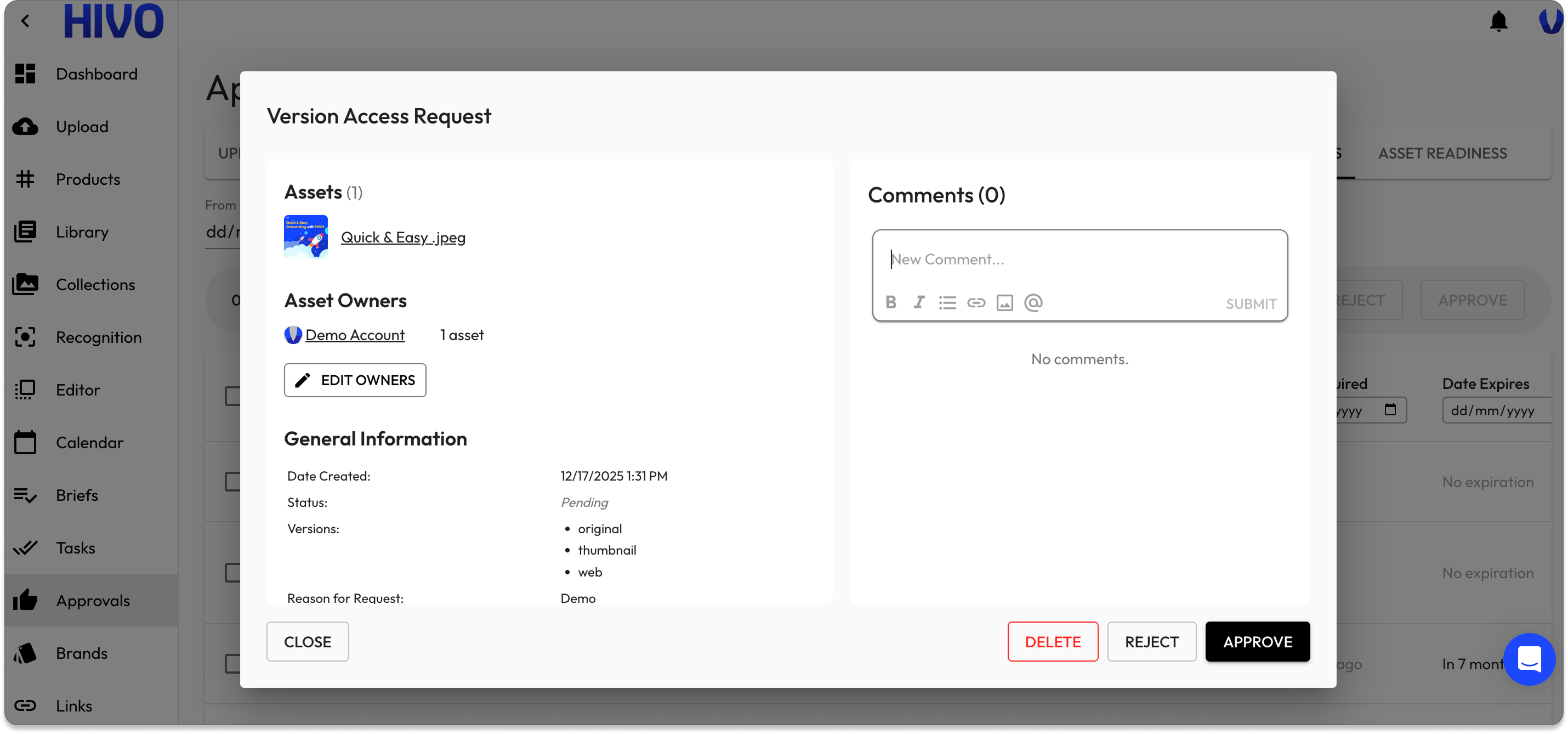
* Click directly on the request name from the notification or the approval list to open the "Version Access Request" pop-up.

**🔹 Step 2: Review and Modify Information**

Within this pop-up, the Admin can:

* **Edit Asset Owners:** Change or update the asset owners if necessary.
* **View General Information:** Review the overview provided by the user (Reason, Date Required) as a basis for approval.
* **Edit Version Access Request:** Click the pencil icon to customize the request details before approving:
  * **Add/Remove Asset:** Add or remove assets from the request list.
  * **Add/Remove Version:** Specify exactly which versions the user is permitted to access.
  * **Change Date Required:** Adjust the date the user needs the asset.
  * **Set Date Expires:** Set a specific expiration date so the system automatically revokes access after this period.

<figure><img src="/files/nmLJOVKnmgFUMfQuA8Og" alt=""><figcaption></figcaption></figure>

**🔹 Step 3: Interaction and Notification**

* **Comments:** The Admin can leave comments to communicate with the requester or for internal notes.
* **Notification:** By default, a notification is sent to the requester when the request is updated. Admin can change this by unchecking the checkbox.

**🔹 Step 4: Approval completed**

The Admin selects one of the three action buttons at the bottom of the pop-up to complete the process:

* **Approve:** Grant access based on the configured settings.
* **Reject:** Deny the access request.
* **Delete:** Remove the request from the system.

***

## Track and manage asset instance access requests

In addition to direct notifications, all version access requests are stored and centrally managed in the Version Access Request tab within the Approval section.

* **Tracking & Monitoring:** From this tab, Admins can track the status of all requests—whether pending, approved, or rejected—providing a comprehensive overview of asset usage needs across the organization.
* **Quick Actions:** Admins can directly select requests from this list to perform actions such as Approve, Reject, or Delete quickly and efficiently.

👉 The approval process is as instructed above.

<figure><img src="/files/ncbkUCNL9hz0qL7oJsYM" alt=""><figcaption></figcaption></figure>

If you have any questions, don't hesitate to ask, we're always here to help!


---

# Agent Instructions: Querying This Documentation

If you need additional information that is not directly available in this page, you can query the documentation dynamically by asking a question.

Perform an HTTP GET request on the current page URL with the `ask` query parameter:

```
GET https://support.hivo.co/approvals/version-access-requests.md?ask=<question>
```

The question should be specific, self-contained, and written in natural language.
The response will contain a direct answer to the question and relevant excerpts and sources from the documentation.

Use this mechanism when the answer is not explicitly present in the current page, you need clarification or additional context, or you want to retrieve related documentation sections.