> For the complete documentation index, see [llms.txt](https://support.hivo.co/llms.txt). Markdown versions of documentation pages are available by appending `.md` to page URLs; this page is available as [Markdown](https://support.hivo.co/video/video-editor.md).
# Video Editor
Quickly edit videos from the Asset Detail Page
The **Video Editor** allows you to quickly and easily make adjustments to your videos directly within the platform, and then save them as either a new **Asset** or a new **Version**. This feature is designed to let you make basic yet effective changes to your video in just a few clicks.
### 🔹 Step 1: Accessing and Opening the Video Editor
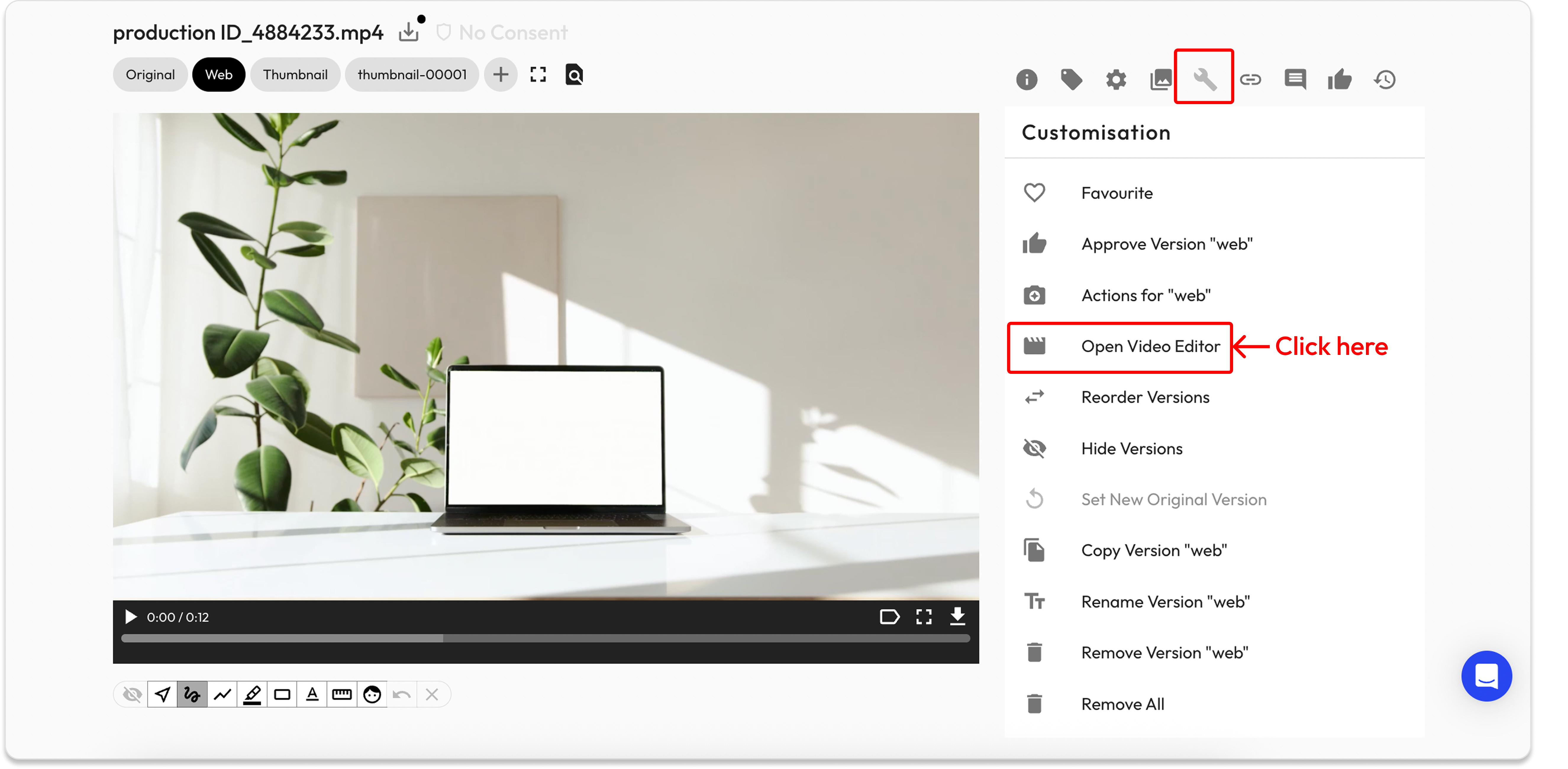
1. Go to the **Asset Detail Page** and select the video you want to edit.
2. Navigate to the **Customization** tab.
3. Click **Open Video Editor** to launch the editor.
### 🔹 Step 2: Edit Video
👉 HIVO is now providing quick editing tools, including:
#### **1. Crop**
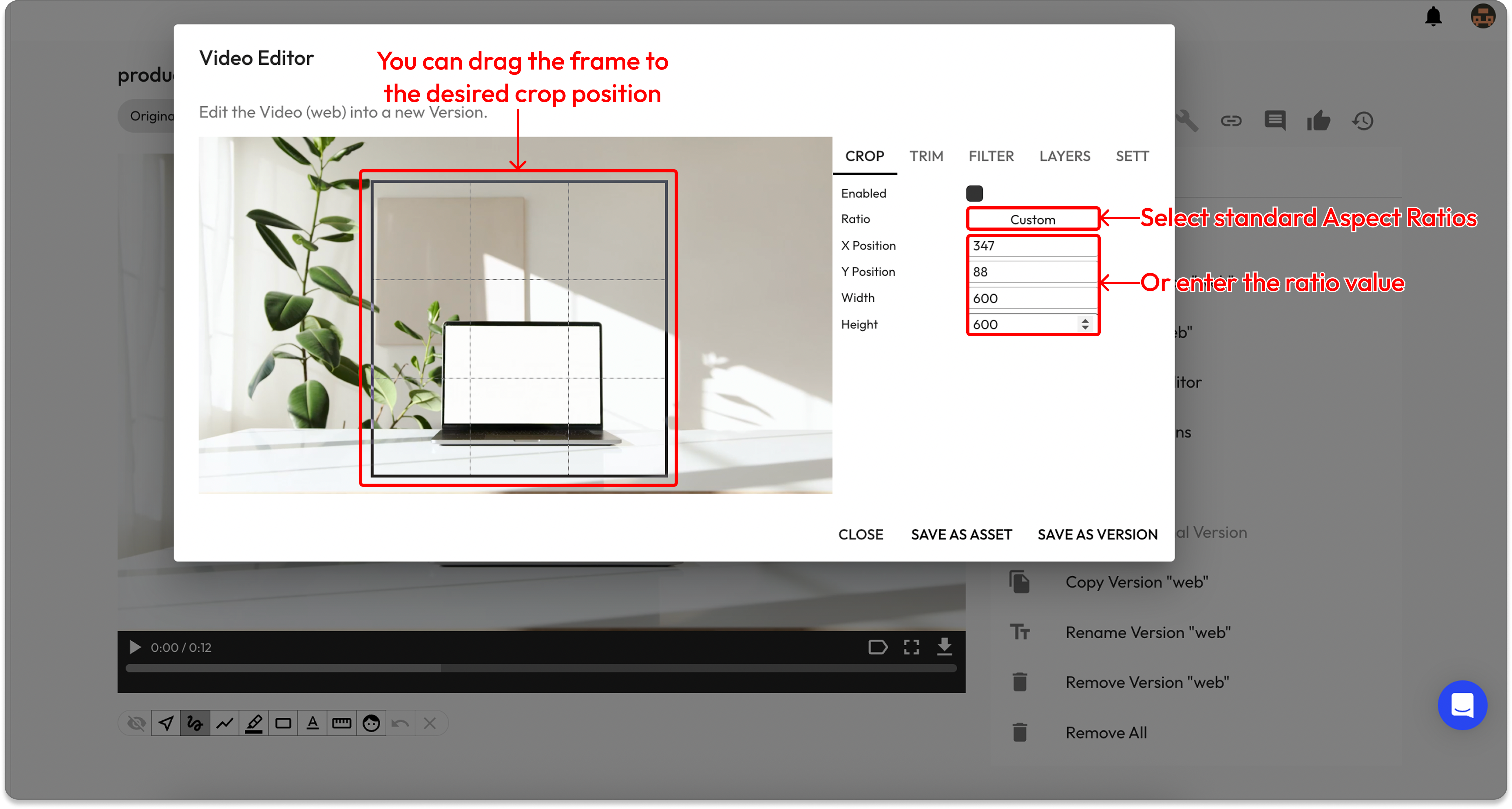
* Use the **CROP** tab to change the size or aspect ratio of the video.
* Check **Enabled** to activate the feature.
* Select a predefined Ratio: select standard Aspect Ratios or enter the ratio value
* **X / Y Position**: Position of the crop frame
* **Width / Height**: Desired width and height.
#### 2. Trim
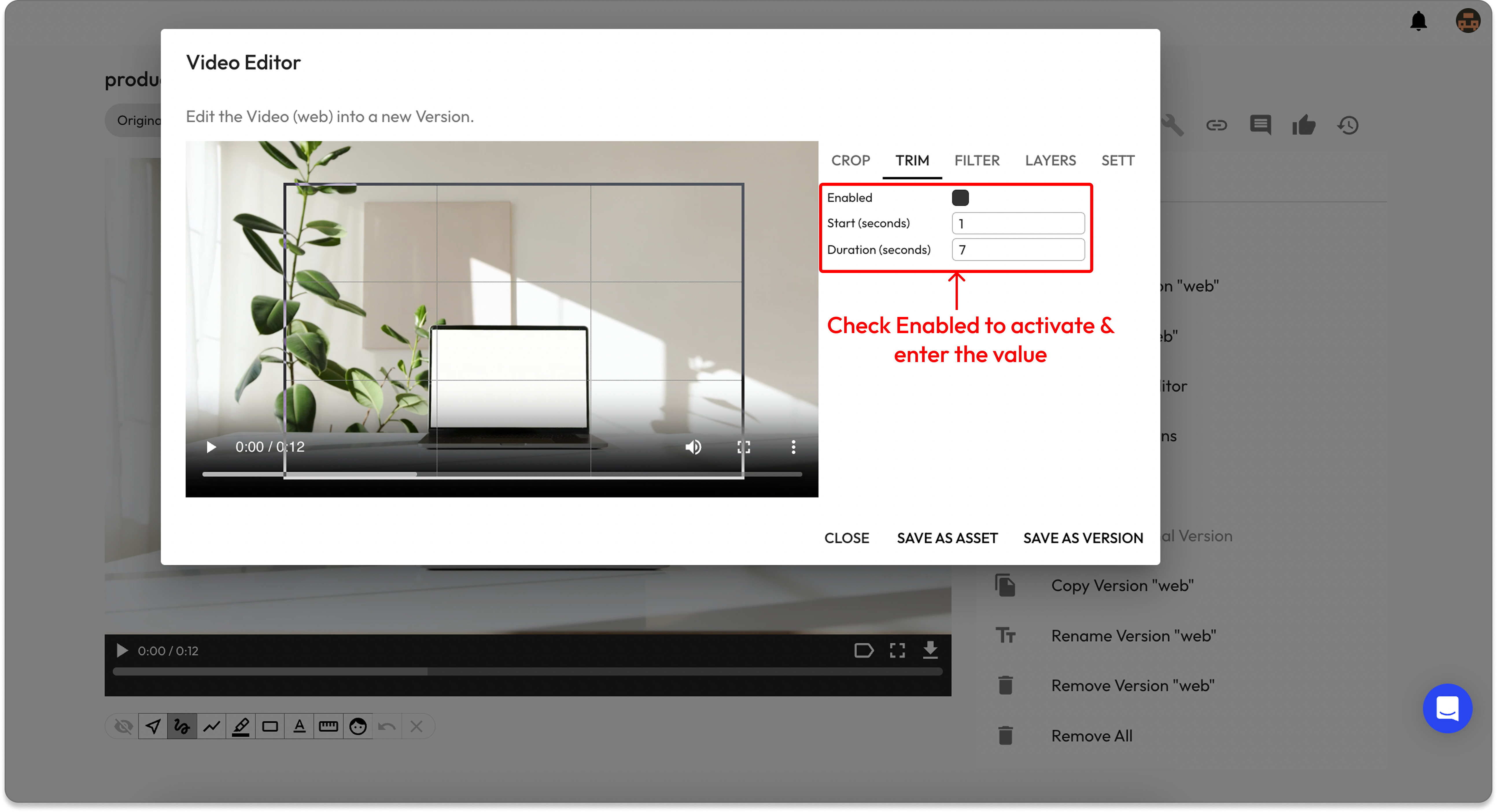
* Use the **TRIM** tab to set the start and end points of the video.
* Check **Enabled** to activate the feature.
* Enter values directly for:
* **Timestamp**: Starting point
* **Duration**: Playback length
#### 3. Filter
* Use the **FILTER** tab to apply color effects or visual enhancements.
* Check **Enabled** to activate.
* Adjust the following parameters:
* **Hue**: Adjust the tone (range 0–180).
* **Saturation**: Increase for vivid colors, decrease for grayscale (range 0–100).
* **Brightness**: Adjust overall brightness (range 0–100).
* **Contrast**: Enhance sharpness or soften the image (range 0–100).
#### 4. Layers
* Use the **LAYERS** tab to add text, images, logos, or overlays.
* **Add a new layer**: Click **ADD LAYER** → a new layer appears (Layer 1, 2...).
* **Select Asset**: Click to insert an image, logo, or video from your library.
* **Adjust settings**:
* **X / Y Position**: Position on the frame.
* **Width / Height**: Layer size.
* **Opacity**: Value from 0 (transparent) to 1 (fully visible).
* **Delete Layer**: Click the **X** next to the layer name.
#### 5. Output Settings
* Use the **SETTINGS** tab to configure technical output parameters:
* **Target Frame Rate**: Set the frame rate (auto or a specific value from 1–60).
* **Rotate Output**: Rotate the video (e.g., None).
* **Remove Audio**: Check to remove all audio from the video.
* **Audio Quality / Video Quality**: Set audio (high, medium, low) and video quality (maximum value = 10).
* **Max Bitrate (Mbps)**: Set the maximum bitrate, e.g., 10 Mbps (up to 1152).
### 🔹 Step 3: Saving the Video
After editing, you have two saving options:
* **SAVE AS ASSET**: Save the edited video as a **new asset** in the library (original video remains unchanged).
* **SAVE AS VERSION**: Save as a **new version** of the original asset (you can still access and restore the original version if needed).
If you have any questions, don't hesitate to ask, we're always here to help!
---
# Agent Instructions
This documentation is published with GitBook. GitBook is the documentation platform designed so that both humans and AI agents can read, navigate, and reason over technical content effectively. Learn more at gitbook.com.
## Querying This Documentation
If you need additional information that is not directly available in this page, you can query the documentation dynamically by asking a question.
Perform an HTTP GET request on the current page URL with the `ask` query parameter, and the optional `goal` query parameter:
```
GET https://support.hivo.co/video/video-editor.md?ask=&goal=
```
`ask` is the immediate question: it should be specific, self-contained, and written in natural language.
`goal` is optional and describes the broader end goal you are ultimately trying to accomplish on behalf of the user. GitBook uses it to tailor the answer towards what is most useful for that goal.
The response will contain a direct answer to the question and relevant excerpts and sources from the documentation.
Use this mechanism when the answer is not explicitly present in the current page, you need clarification or additional context, or you want to retrieve related documentation sections.

.png?alt=media&token=d5f95d2f-6be7-474c-8307-d657f600571a)

