> For the complete documentation index, see [llms.txt](https://support.hivo.co/llms.txt). Markdown versions of documentation pages are available by appending `.md` to page URLs; this page is available as [Markdown](https://support.hivo.co/video/scene-detection-in-video.md).
# Scene Detection in Video
Automatically splits a video into smaller segments based on a selected face detected within the video
### **Video Scene Detection Feature**
**The Scene Detection Video** feature allows the system to automatically split a video into multiple smaller segments based on the faces detected in the video**.**
With video scene detection feature, users can:
* View all segments generated from the original video.
* Download individual segments.
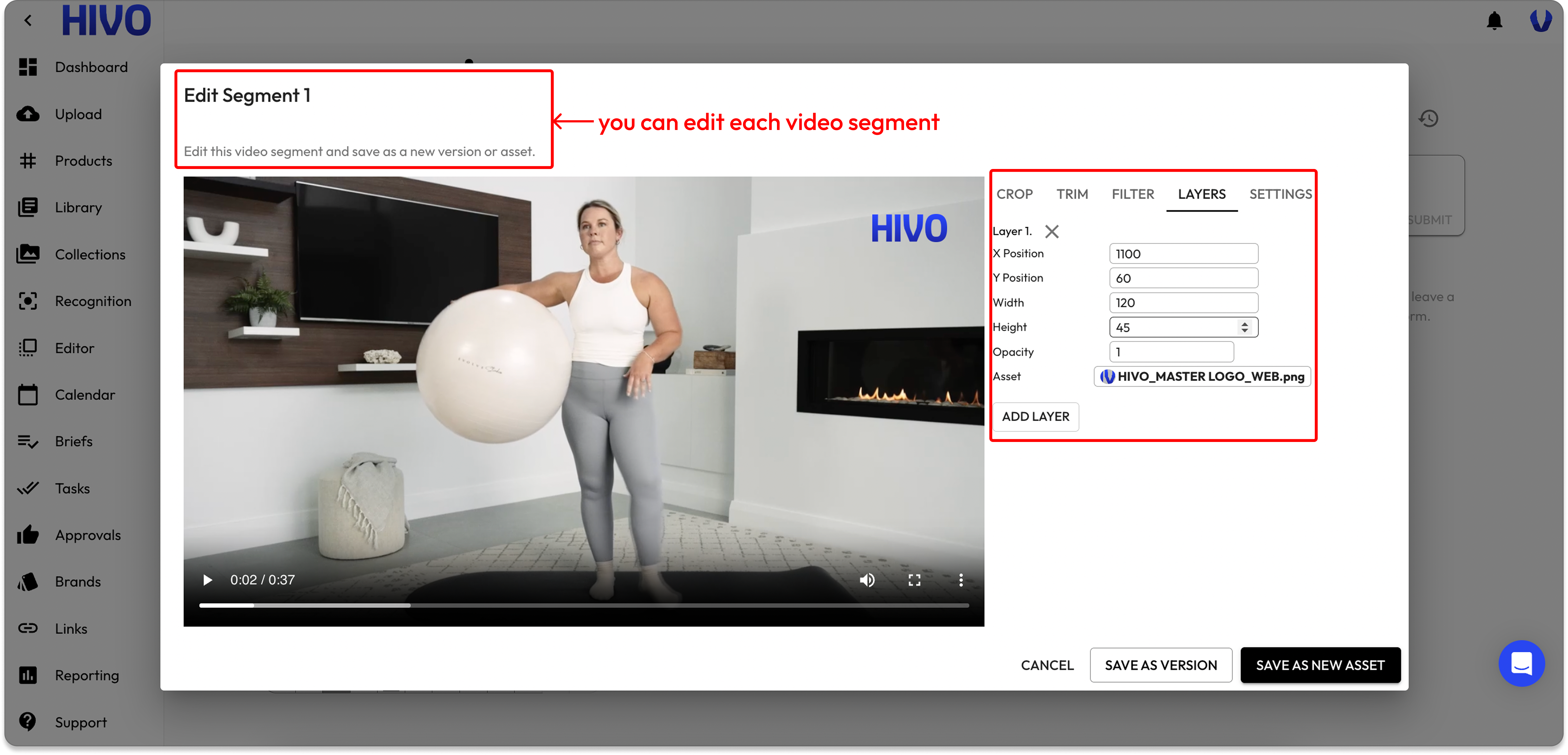
* Edit each segment independently (similar to the Video Editor on the Asset Detail page) and save it as a new version or a new asset.
* Merge the segments into a new video and edit it (similar to the Video Editor on the Asset Detail page), then save it as a new version or a new asset.
👉 **Note: Scene Detection only works if** [**Face Detection** ](https://support.hivo.co/recognition/run-automation-recognition)**has already been processed** on the video.
### **How to use Scene Detection in Video**
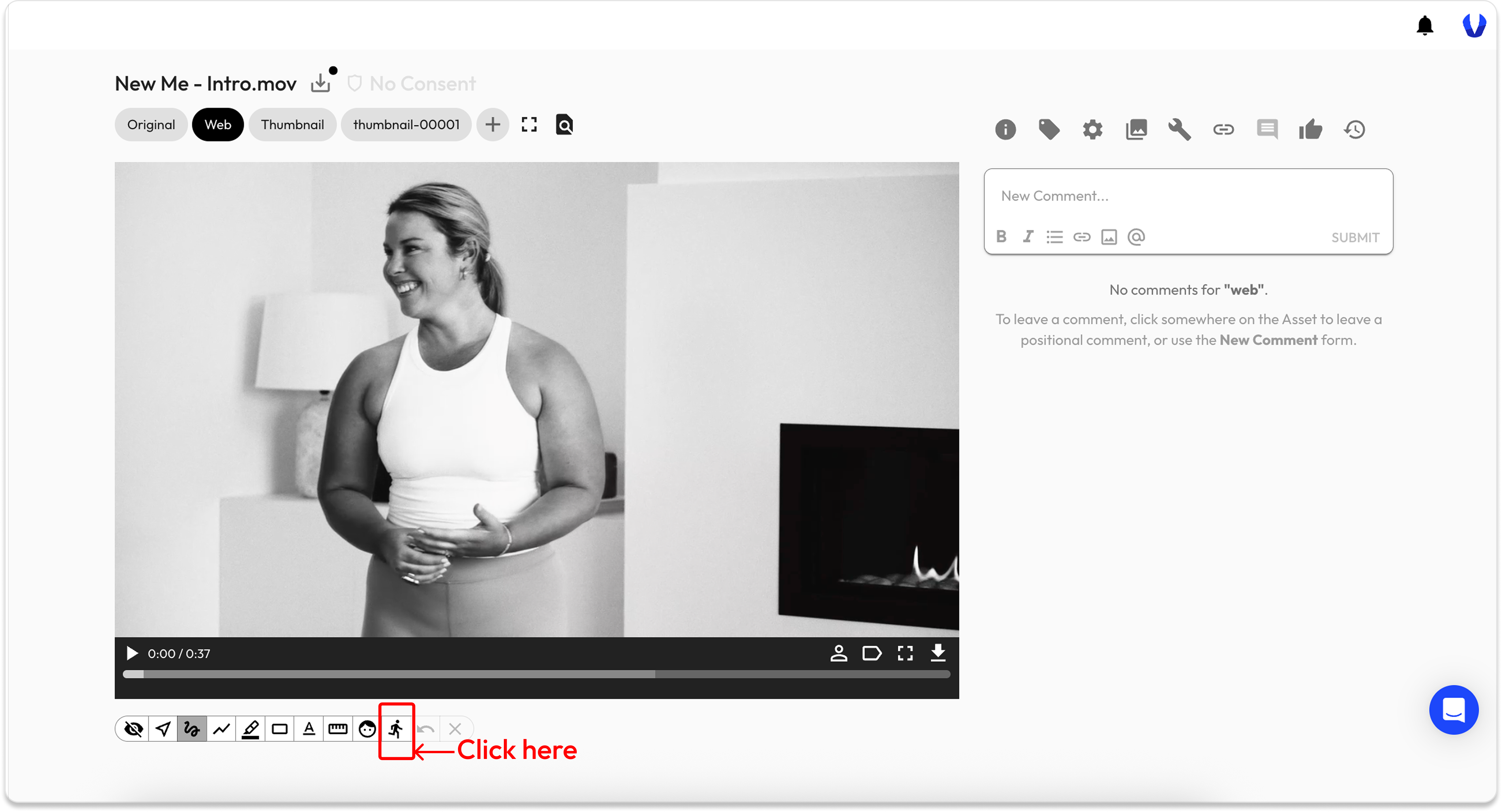
#### 🔹 **Step 1: Run Scene Detection in Video**
* On the video toolbar, click the **Scene Detection icon**.
* When clicked, the system opens the **Scene Detection Dialog**.
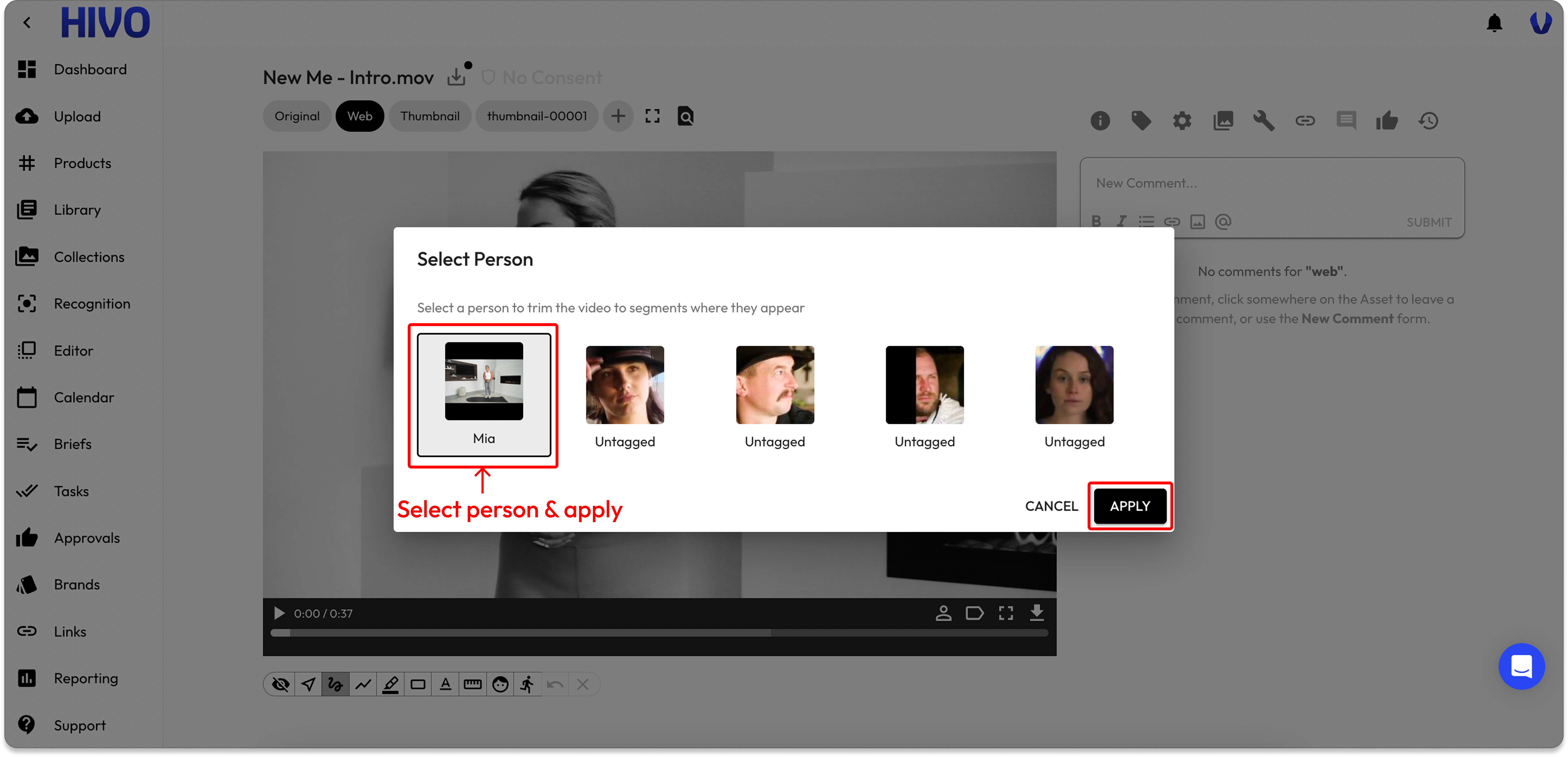
#### 🔹 **Step 2: Select a Person for Segment Generation**
Inside the Scene Detection Dialog:
* **View Detected Faces**
* The system displays **all faces detected** by Face Detection.
* Each detected face is shown as a **thumbnail** for selection.
* **Select a Person**
* Select any person from the list.
* The system analyzes the video and automatically splits it into small segments each time the selected face appears.
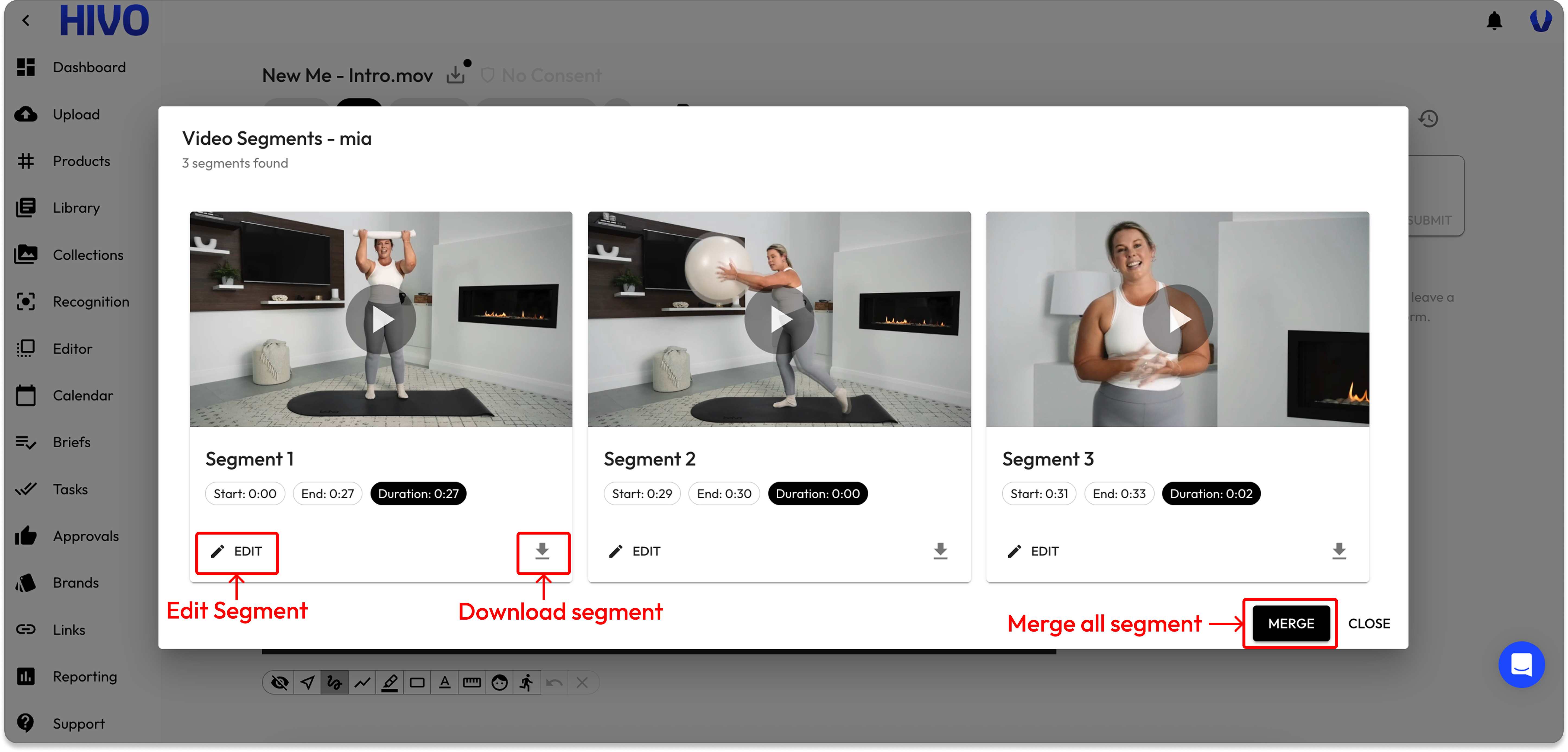
#### 🔹 **Step 3: Automatic Segment Generation**
After video analysis:
* **System-Generated Segments:** A new segment is created every time the selected face appears in the video.
* Each segment includes:
* **Start time** — when the face first appears
* **End time** — when the face disappears
* **Duration** — the length of the segment
* **Segment List:** All segments are displayed in the interface for users to review and manage.
#### 🔹 **Step 4: Segment Actions**
For each generated segment, users can:
* **Play Segment:** Preview the segment to verify its content.
* **Download Segment:** Download the trimmed segment.
* **Merge all Segments**
* **Edit Segment:** Adjust the start and end timestamps. The editing interface is similar to the[ **Video Editor** ](https://support.hivo.co/video/video-editor)in Asset Detail. After editing, users can choose to:
* **Save as new version**
* **Save as new asset**
#### 🔹 **Step 5: Merge all Segment & Edit**
* **Merge All Segments:** Users can merge all generated segments into a single video. The system creates a new combined video file.
* **Edit the Merged Video:**
* After merging, the merged video can be edited using the Video Editor tools include: **TRIM, CROP, FILTER, add LAYER, SETTINGS out put.**
* The interface works the same as the standard [**Video Editor**](https://support.hivo.co/video/video-editor)**.**
#### 🔹 **Step 6: Save the Merged Video**
Users can choose how to save:
* **Save as new version:** Create a new version of the original video.
* **Save as new asset:** Save the merged video as a completely new asset in the library.
If you have any questions, don't hesitate to ask, we're always here to help!
---
# Agent Instructions
This documentation is published with GitBook. GitBook is the documentation platform designed so that both humans and AI agents can read, navigate, and reason over technical content effectively. Learn more at gitbook.com.
## Querying This Documentation
If you need additional information that is not directly available in this page, you can query the documentation dynamically by asking a question.
Perform an HTTP GET request on the current page URL with the `ask` query parameter, and the optional `goal` query parameter:
```
GET https://support.hivo.co/video/scene-detection-in-video.md?ask=&goal=
```
`ask` is the immediate question: it should be specific, self-contained, and written in natural language.
`goal` is optional and describes the broader end goal you are ultimately trying to accomplish on behalf of the user. GitBook uses it to tailor the answer towards what is most useful for that goal.
The response will contain a direct answer to the question and relevant excerpts and sources from the documentation.
Use this mechanism when the answer is not explicitly present in the current page, you need clarification or additional context, or you want to retrieve related documentation sections.