> For the complete documentation index, see [llms.txt](https://support.hivo.co/llms.txt). Markdown versions of documentation pages are available by appending `.md` to page URLs; this page is available as [Markdown](https://support.hivo.co/products/import-data-by-csv.md).
# Import Data by CSV
This feature saves time by allowing you to upload hundreds of products simultaneously from a CSV file instead of manual entry.
#### 🔹 Step 1: Select method Import Data
* Click to (+) icon - the top right corner of the interface opens the import options
* Select the method that fits your goal:
* **Add multiple Products from CSV:** For new products only.
* **Update multiple Products from CSV:** To update existing product information.
* **Add or update multiple Products from CSV:** A hybrid mode that adds new items and updates existing ones based on IDs.
#### 🔹 Step 2: Upload Your CSV File
* In the **Upload CSV File for Products** interface:
* **Import Mode:** Add Only/ Select your preferred mode
* **Choose CSV File:** Drag and drop your CSV file into the designated area or click to browse your computer.
* Click Next to proceed.
#### 🔹 Step 3: Map Data Columns
The system needs to know which column in your CSV corresponds to which field in HIVO. In the **Map each CSV column to the corresponding field type** table:
* Review the **CSV Column Name** list (the headers from your file).
* Specifically, for the CSV Column Name of the Product ID, **you must select and map it to the Product ID field**. This field is used as the ID for the Product and must be unique. If there are multiple rows in the CSV with the same value for this field, the data import will fail.
* With another **HIVO Fields**, choose the matching data field (e.g., map "Product Description" to "Metadata - product description").
* For unnecessary columns, set the status to **Ignore.**
👉 Tip: Click **AUTO-MAP COLUMNS** to let the system automatically match fields if your CSV headers already align with system field names.
* Then, Click Next.
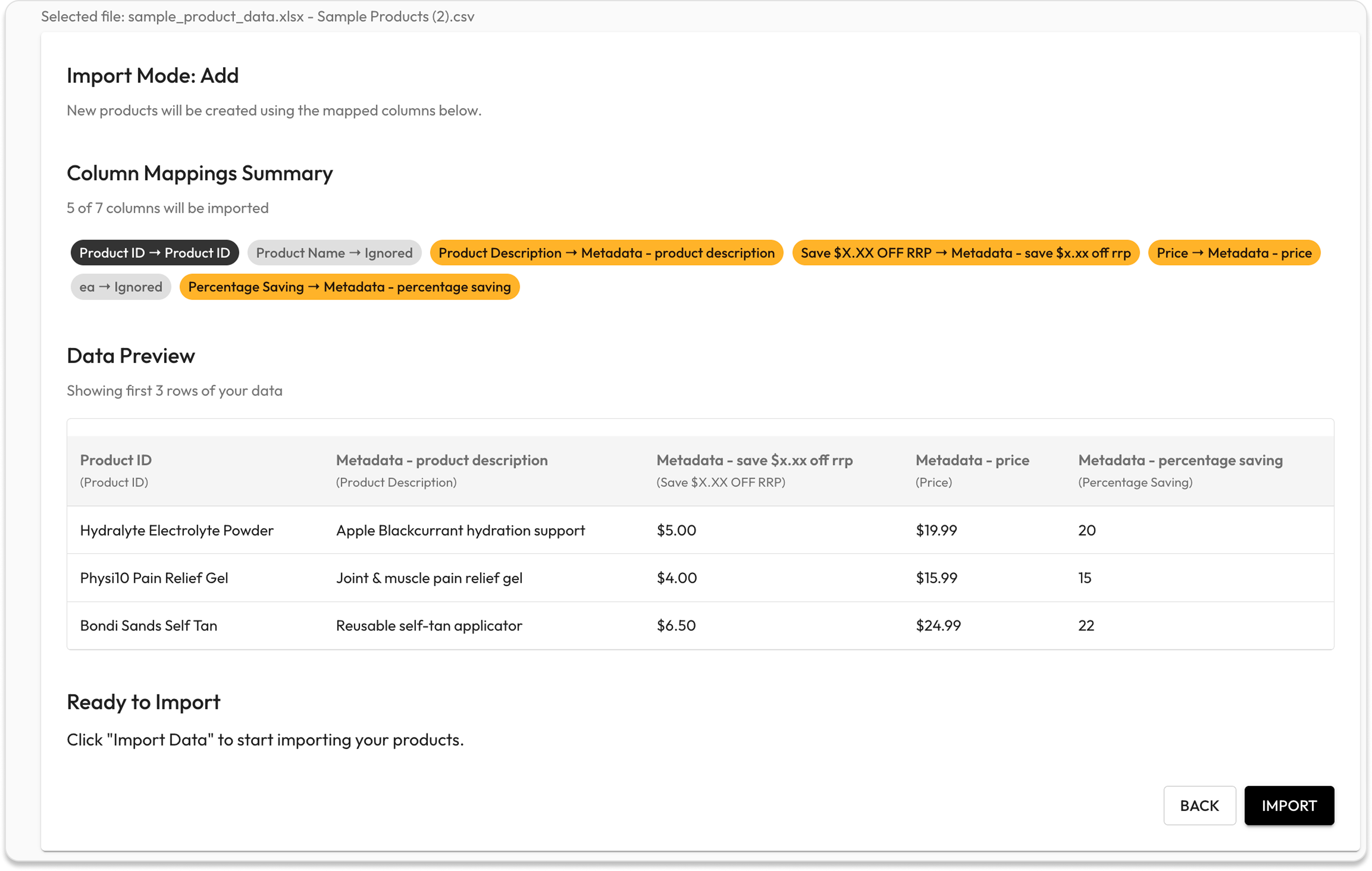
#### 🔹 Step 4: Review and Confirm
Before the data is finalized, a preview will be displayed:
* **Column Mappings Summary:** Shows a summary of columns to be imported (highlighted in orange) and those ignored (grey).
* **Data Preview:** Displays the first 3 rows of your data so you can verify the accuracy of information and formatting.
* If everything is correct, click the **Import** button.
#### 🔹 Step 5: Finalize Results
* The system will display a **Successfully imported** message along with a summary:
* **Total Processed:** The total number of rows handled.
* **Successful:** The number of products successfully imported.
* To continue with another file, click **Start new import**
**⚠️ Important Note:**
* **CSV Formatting:** The first row of your CSV file must contain column headers.
* **Product ID (SKU):** To update existing products, your CSV must include a column mapped to the internal Product ID so the system can identify the records.
If you have any questions, don't hesitate to ask, we're always here to help!
---
# Agent Instructions
This documentation is published with GitBook. GitBook is the documentation platform designed so that both humans and AI agents can read, navigate, and reason over technical content effectively. Learn more at gitbook.com.
## Querying This Documentation
If you need additional information that is not directly available in this page, you can query the documentation dynamically by asking a question.
Perform an HTTP GET request on the current page URL with the `ask` query parameter, and the optional `goal` query parameter:
```
GET https://support.hivo.co/products/import-data-by-csv.md?ask=&goal=
```
`ask` is the immediate question: it should be specific, self-contained, and written in natural language.
`goal` is optional and describes the broader end goal you are ultimately trying to accomplish on behalf of the user. GitBook uses it to tailor the answer towards what is most useful for that goal.
The response will contain a direct answer to the question and relevant excerpts and sources from the documentation.
Use this mechanism when the answer is not explicitly present in the current page, you need clarification or additional context, or you want to retrieve related documentation sections.