> For the complete documentation index, see [llms.txt](https://support.hivo.co/llms.txt). Markdown versions of documentation pages are available by appending `.md` to page URLs; this page is available as [Markdown](https://support.hivo.co/library/library-actions/scan-images-for-text-content.md).
# Scan Images for text Content
Automatically "read" and extract all text found within images
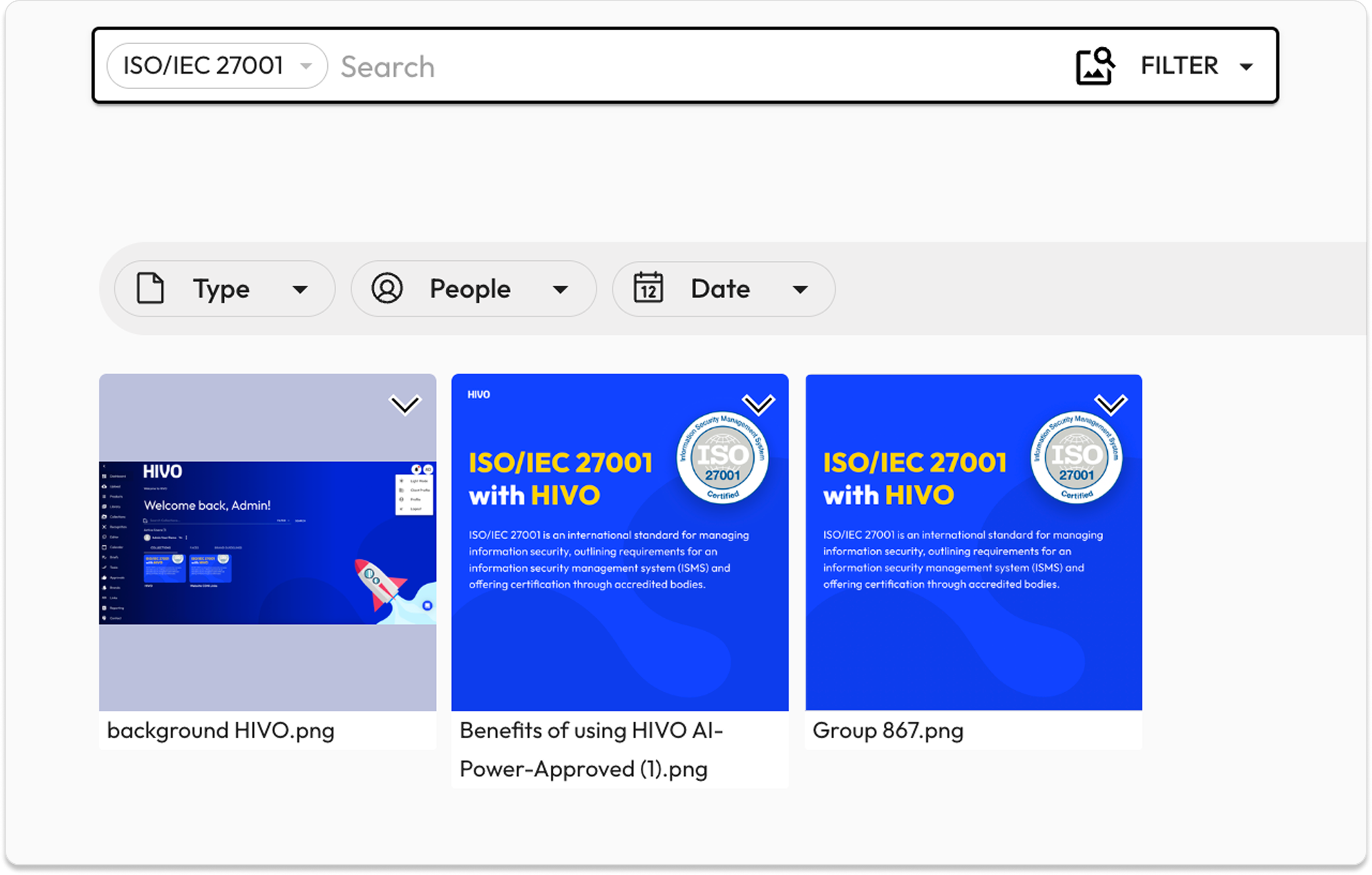
**Scan Image Contents** is a feature that utilizes OCR (Optical Character Recognition) technology to automatically "read" and extract all text found within images - such as banners, screenshots,... This extracted text is then automatically **stored in the image's Tags** section.
* **Smart Search**: Locate images instantly by typing any keyword visible within the image. For example, you can find a specific certificate by searching for "ISO/IEC 27001."
* **Time-saving**: Eliminates the need to manually enter descriptions or add tags for every single image, streamlining your workflow.
HIVO provides you to **'Scan Image Contents'** in two ways:
* **For assets already stored in the librarys:** Run the scan text process on assets already stored in your library.
* **When uploading new asset:** Scan text automatically when uploading a new asset.
### 1**.** Scan Image Contents **for assets already stored in the Library**
#### 🔹 Step 1: **Selecting Assets**
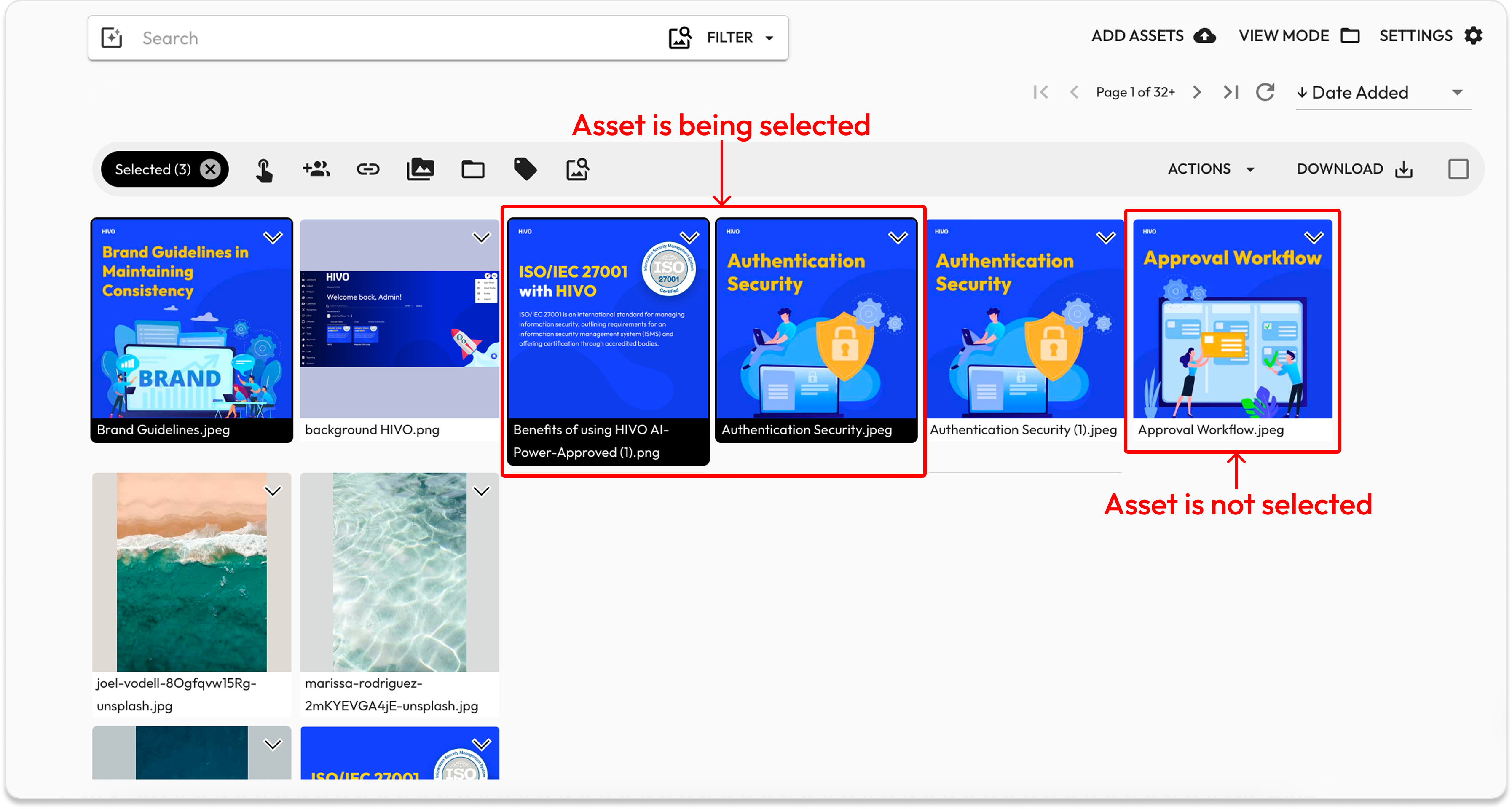
* **Select a single asset:** In the Library, left click once on the asset thumbnail you want to select. You will see the asset has been selected once the thumbnail gets highlighted with a border.
* **Select a range of multiple assets:** To select multiple assets, first select a single asset by left clicking on the asset thumbnail once. Then hold down the Shift key on your keyboard and left-click on the last asset in the range you want to select. All assets between the first and last selected assets will be highlighted. You can also select additional assets by just **clicking on the once while holding down the shift key.**
#### 🔹 Step 2: Open **Library Actions & select the 'Automation' tool**
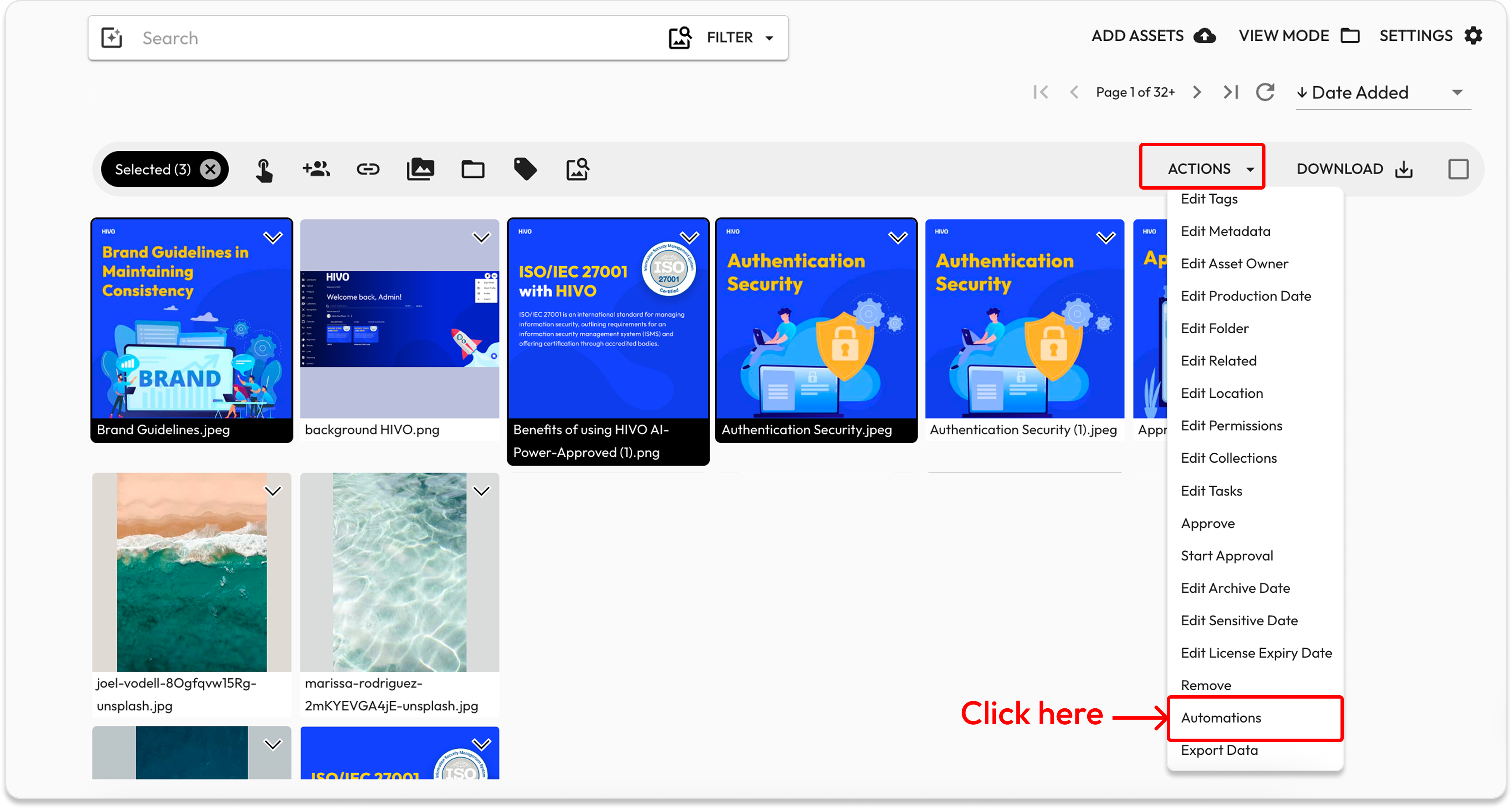
* Once you've selected your assets, click the '**ACTIONS'** button in the top right corner of the Library (it will only be active when assets are selected.) The Actions menu provides a list of functions that can be performed on your selected assets. The available options may vary depending on your user permissions and active [**User Rights**](https://support.hivo.co/client-profile/users/list-of-user-rights)**.**
* And **select the 'Automation'** tool to **open the Run Automations dialog.**
#### 🔹 Step 3: **Run '**Scan Image Contents'
* In the new dialog, select the asset version you want to scan and check the '**Scan image for contents**' box.
* Click **Submit** to start the process.
* Once complete, a success message will appear in the upper right corner of the screen.
#### 🔹 Step 4: **View and manage Transcription Results**
* After receiving the completion notification, close the dialog.
* Go to the **Tags tab** on the **Asset Detail Page** (Note: choose the correct version of the script created).
### 2. Scan Image Contents During the Upload Process
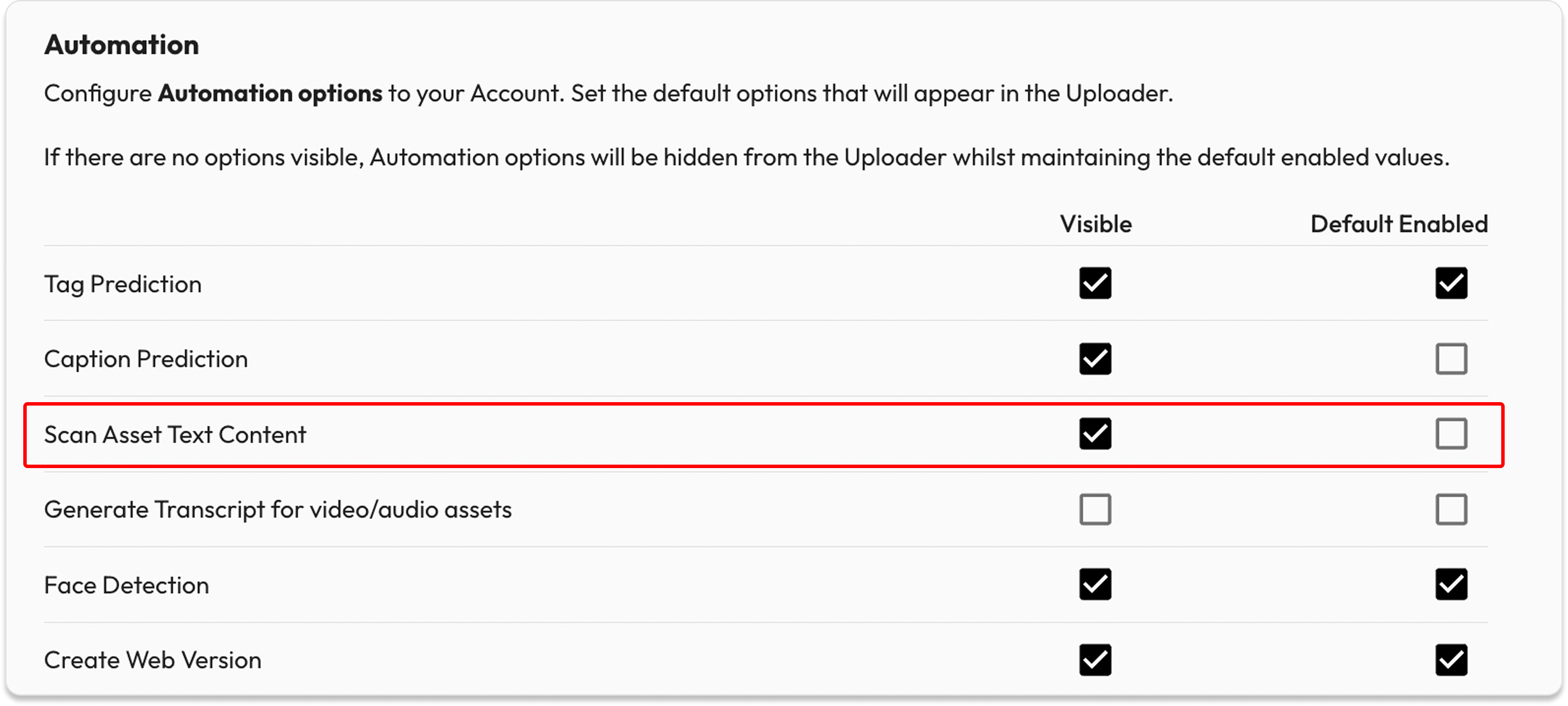
⚠️ Users with the permission ***'Is Client Admin - User can manage the Client Profile'*** can add Automation options within the [**Uploader Settings**](https://support.hivo.co/client-profile/client-profile-settings/asset-and-metadata-management/uploader-settings)**.**
* Go to the '**Asset Detail'** step in the upload procesprocess, croll down to the '**Additional Automations'** section.
* Tick the checkbox **'Scan Images for text content'**
* **Continue uploading as usual** — HIVO will automatically process it and you can **view the results once the asset has been successfully uploaded**.
* View the text scan results on the image: At this point, the asset is stored in the librarlibrary, go to the **Asset Detail Page** and navigate to the **"Tags tab"** to see the results.
👉 **👉 Note**: **For assets in the Approval stage** (The Assets need to be reviewed and approved by Users with ***'Can Approve'*** permission before being added to the main Library):
* Results will not be displayed immediately.
* Once the asset is approved and officially stored on the HIVO Library, go to the **Asset Detail Page** and navigate to the '**Tags tab'** to see the results.
If you have any questions, don't hesitate to ask, we're always here to help!
---
# Agent Instructions
This documentation is published with GitBook. GitBook is the documentation platform designed so that both humans and AI agents can read, navigate, and reason over technical content effectively. Learn more at gitbook.com.
## Querying This Documentation
If you need additional information that is not directly available in this page, you can query the documentation by asking a question.
Perform an HTTP GET request on the following URL with the `ask` and `goal` query parameters:
```
GET https://support.hivo.co/library/library-actions/scan-images-for-text-content.md?ask=&goal=
```
`ask` is the immediate question: it should be specific, self-contained, and written in natural language.
`goal` is what the user is ultimately trying to achieve, the reason they need the answer. Sharing it helps GitBook give you a better, more relevant answer. A goal is most helpful when it describes the outcome the user wants rather than restating the question. For example, with `ask=how do I create an API token`, a goal like `automate deployments from our CI pipeline` lets GitBook tailor the answer to that use case.
The response will contain a direct answer to the question and relevant excerpts and sources from the documentation.
Use this mechanism when the answer is not explicitly present in the current page, you need clarification or additional context, or you want to retrieve related documentation sections.


.png?alt=media&token=2fc68cb7-6ac5-40a3-8be3-e4da6f80ef57)