> For the complete documentation index, see [llms.txt](https://support.hivo.co/llms.txt). Markdown versions of documentation pages are available by appending `.md` to page URLs; this page is available as [Markdown](https://support.hivo.co/library/folder-management-tools/folder-actions.md).

# Folder Actions

Mastering Your Assets: A Guide to HIVO's Folder Management

HIVO equips you to organize your digital assets efficiently with its folder management functionalities. This guide explores how to access folder settings, perform actions on entire folders, and maintain a well-structured library.

## How to use Folder Actions

<table data-view="cards"><thead><tr><th></th></tr></thead><tbody><tr><td><h4><a href="https://support.hivo.co/library/folder-management-tools/folder-actions#can-i-edit-tags-for-all-assets-in-a-specific-folder">Edit tags for all Assets in a folder</a></h4></td></tr><tr><td><h4><a href="https://support.hivo.co/library/folder-management-tools/folder-actions#can-i-edit-metadata-for-all-assets-in-a-specific-folder">Edit Metadata for all Assets in a folder</a></h4></td></tr><tr><td><h4><a href="https://support.hivo.co/library/folder-management-tools/folder-actions#can-i-edit-the-asset-owner-for-all-assets-in-a-specific-folder">Edit the Asset Owner for all Assets in a folder</a></h4></td></tr><tr><td><h4><a href="https://support.hivo.co/library/folder-management-tools/folder-actions#can-i-archive-all-assets-in-a-specific-folder">Archive all Assets in a folder</a></h4></td></tr><tr><td><h4><a href="https://support.hivo.co/library/folder-management-tools/folder-actions#can-i-edit-permissions-for-all-assets-in-a-specific-folder">Edit Permissions for all Assets in a folder</a></h4></td></tr><tr><td><h4><a href="https://support.hivo.co/library/folder-management-tools/folder-actions#can-i-set-up-email-notifications-for-a-specific-folder">Set up email notifications for a folder</a></h4></td></tr></tbody></table>

To view folder settings/actions, either right click the folder or left click the down arrow on the top right of the folder.

<figure><img src="https://2446612760-files.gitbook.io/~/files/v0/b/gitbook-x-prod.appspot.com/o/spaces%2F0sjg5GpIPr5HzBTJYqYe%2Fuploads%2FjgDq422ulgrnq6jlq0vf%2FGroup%20872.png?alt=media&amp;token=17163400-39f5-4563-b482-1ae59710f466" alt=""><figcaption></figcaption></figure>

### Can I edit tags for all Assets in a specific folder?

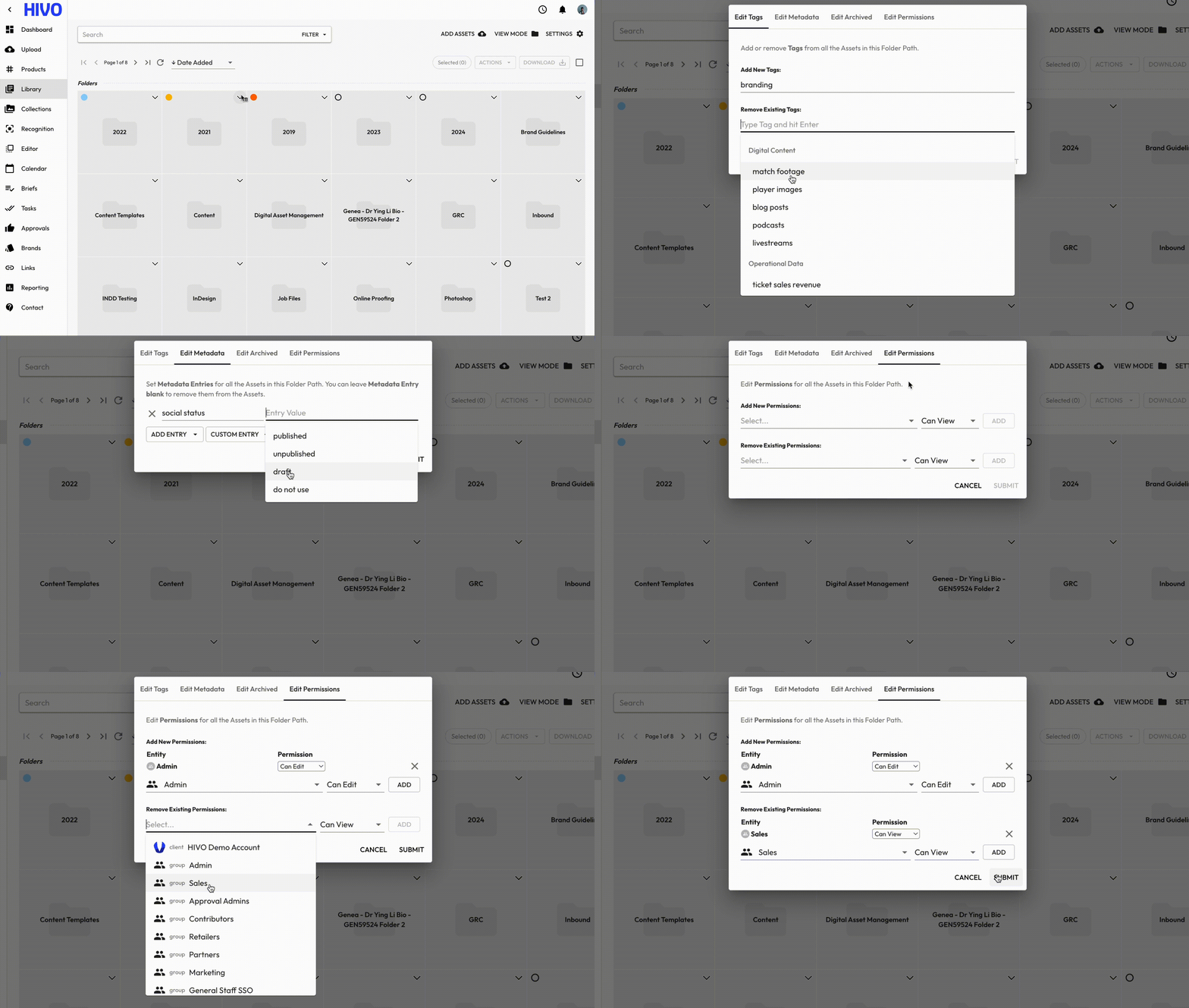
HIVO allows you to add or remove **Tags** from all Assets within a selected folder, including Assets in nested subfolders.

**🔹** To edit Tags:

* Go to **Library** and select the Folder -> Click the **down arrow** next to the Folder.
* Select **Folder Actions** & choose **tab "Edit Tags"**.
* Select from the list of suggested tags or enter a new tag. Click the "x" next to a tag to remove it.
* Then, confirm to save the changes.

The selected Tags will be added to or removed from all Assets in the Folder Path, including Assets in nested subfolders.

<figure><img src="https://2446612760-files.gitbook.io/~/files/v0/b/gitbook-x-prod.appspot.com/o/spaces%2F0sjg5GpIPr5HzBTJYqYe%2Fuploads%2FZGHKdAhI5vqTuLPhba37%2FGroup%20874.png?alt=media&amp;token=974b13a2-e8d1-4a68-84a2-aea837150407" alt=""><figcaption></figcaption></figure>

***

### Can I edit Metadata for all Assets in a specific folder?

Yes. HIVO allows you to set **Metadata Entries** for all Assets within a selected folder, including Assets in nested subfolders.

**🔹** To edit Metadata:

* Go to **Library** and select the Folder -> Click the **down arrow** next to the Folder.
* Select **Folder Actions** & choose **tab Edit Metadata**.
* Enter the required Metadata values.

👉 Note: Leave a Metadata Entry blank if you want to remove it from the Assets.

The Metadata settings will be applied to all Assets in the Folder Path, including Assets in nested subfolders.

<figure><img src="https://2446612760-files.gitbook.io/~/files/v0/b/gitbook-x-prod.appspot.com/o/spaces%2F0sjg5GpIPr5HzBTJYqYe%2Fuploads%2FxDGFj1XC9p16IZWdVOSX%2FScreen-Recording-2026-09-11-at-16.00.19.gif?alt=media&amp;token=0f3fe89e-1608-4987-82f9-97ff23c32b34" alt=""><figcaption></figcaption></figure>

***

### Can I edit the Asset Owner for all Assets in a specific folder?

Yes. HIVO allows you to update the **Asset Owner** for all Assets within a selected folder, including Assets in nested subfolders.

**🔹** To edit the Asset Owner:

* Go to **Library** and select the Folder -> Click the **down arrow** next to the Folder.
* Select **Folder Actions** & choose **tab Edit Asset Owner.**
* Select the new Asset Owner & Confirm the changes.

👉 Note:  Leave blank to remove the Asset Owner.

The selected user will become the Owner of all Assets in the Folder Path, including Assets in nested subfolders.

<figure><img src="https://2446612760-files.gitbook.io/~/files/v0/b/gitbook-x-prod.appspot.com/o/spaces%2F0sjg5GpIPr5HzBTJYqYe%2Fuploads%2FbBxFICo1kCokYZPCyoz6%2FScreen-Recording-2026-09-11-at-15.58.37.gif?alt=media&amp;token=a028203a-9ae1-4ee1-99a7-b1c97effdab1" alt=""><figcaption></figcaption></figure>

***

### Can I archive all Assets in a specific folder?

Yes. HIVO allows you to set an **archive date** for all Assets within a selected folder, including Assets in nested subfolders.

**🔹** To edit the archive settings:

* Go to **Library** and select the Folder -> Click the **down arrow** next to the Folder.
* Select **Folder Actions** & choose **tab Edit Archived.**
* Set the archive date & onfirm the changes.

The Assets will be archived at the start of the selected date. Archived Assets do not appear in Library search results by default and cannot be used in Shared Links. Access to archived Assets is restricted to users with the **Can View Archived** user right.

{% @howdygo/embed url="<https://app.howdygo.com/share/86a77ba6-812b-48c6-a674-d8c57321cd00>" %}

***

### Can I edit Permissions for all Assets in a specific folder?

Yes. HIVO allows you to edit **Permissions** for all Assets within a selected folder, including Assets in nested subfolders.

**🔹** To edit Permissions:

* Go to **Library** and select the Folder -> Click the **down arrow** next to the Folder.
* Select **Folder Actions** & choose **tab.** **Edit Permission.**
* Update the Permissions as needed & confirm the changes.

The updated Permissions will be applied to all Assets in the Folder Path, including Assets in nested subfolders.

**Note:** These actions apply to all Assets in the selected Folder Path, including Assets in nested subfolders. Make sure the selected settings are correct before confirming the changes.

{% @howdygo/embed url="<https://app.howdygo.com/share/55ff4860-e5f9-442c-9bba-27f81ff1aa1e>" %}

***

### Can I set up email notifications for a specific folder?

HIVO allows you to set up **Email and In-app notifications for a specific folder** when **new Assets are uploaded to that folder**.

This allows you to monitor uploads to selected folders without applying the same notification setting across the entire Library.

**🔹** To set this up:

* Go to **Library** and select the Folder you want to monitor.
* Click the **down arrow** next to the Folder.
* Select **Folder Actions**.
* The Folder Action dialog will open and switch to the **"Set up Notifications" tab**. Then, configure the notification and select the **Users or Groups** that should receive it.

👉 **Note:** Only users with the **Can View All Assets** permission can receive these notifications.

This setting applies specifically to **new Assets uploaded to the selected Folder**. Other types of notifications, such as comments, approvals, or new versions, are managed separately through HIVO's notification settings. The settings are as follows: **Client Profile → Settings →** [**Global Notification Settings**](https://support.hivo.co/client-profile/client-profile-settings/system-and-integration/global-notification-settings).

👉 Explore the product tour below:

{% @howdygo/embed url="<https://app.howdygo.com/share/a0d2a7ff-2fd1-47f7-ba6f-d6b5b5f25a8f>" %}

If you have any questions, don't hesitate to ask, we're always here to help!


---

# Agent Instructions
This documentation is published with GitBook. GitBook is the documentation platform designed so that both humans and AI agents can read, navigate, and reason over technical content effectively. Learn more at gitbook.com.

## Querying This Documentation
If you need additional information that is not directly available in this page, you can query the documentation dynamically by asking a question.

Perform an HTTP GET request on the current page URL with the `ask` query parameter, and the optional `goal` query parameter:

```
GET https://support.hivo.co/library/folder-management-tools/folder-actions.md?ask=<question>&goal=<endgoal>
```

`ask` is the immediate question: it should be specific, self-contained, and written in natural language.
`goal` is optional and describes the broader end goal you are ultimately trying to accomplish on behalf of the user. GitBook uses it to tailor the answer towards what is most useful for that goal.

The response will contain a direct answer to the question and relevant excerpts and sources from the documentation.

Use this mechanism when the answer is not explicitly present in the current page, you need clarification or additional context, or you want to retrieve related documentation sections.