> For the complete documentation index, see [llms.txt](https://support.hivo.co/llms.txt). Markdown versions of documentation pages are available by appending `.md` to page URLs; this page is available as [Markdown](https://support.hivo.co/integrations/wordpress.md).
# WordPress
The HIVO Connector plugin offers maximum flexibility for content management by allowing you to connect your HIVO asset library directly to your WordPress website. This ensures more efficient management of your images and videos.
* **Available Versions:** WordPress version 4.4.0 or higher
* **Key Features Supported:**
* **Import to Media Library:** Easily transfer files from HIVO to your local WordPress Media Library with one click.
* **CDN Support**: Use CDN URLs for your assets to ensure faster loading times and better performance (requires CDN to be enabled in your HIVO account).
### How to activate and log in to HIVO Connector
#### 🔹 Step 1: Installation and Activation
* Access your WordPress Admin Dashboard
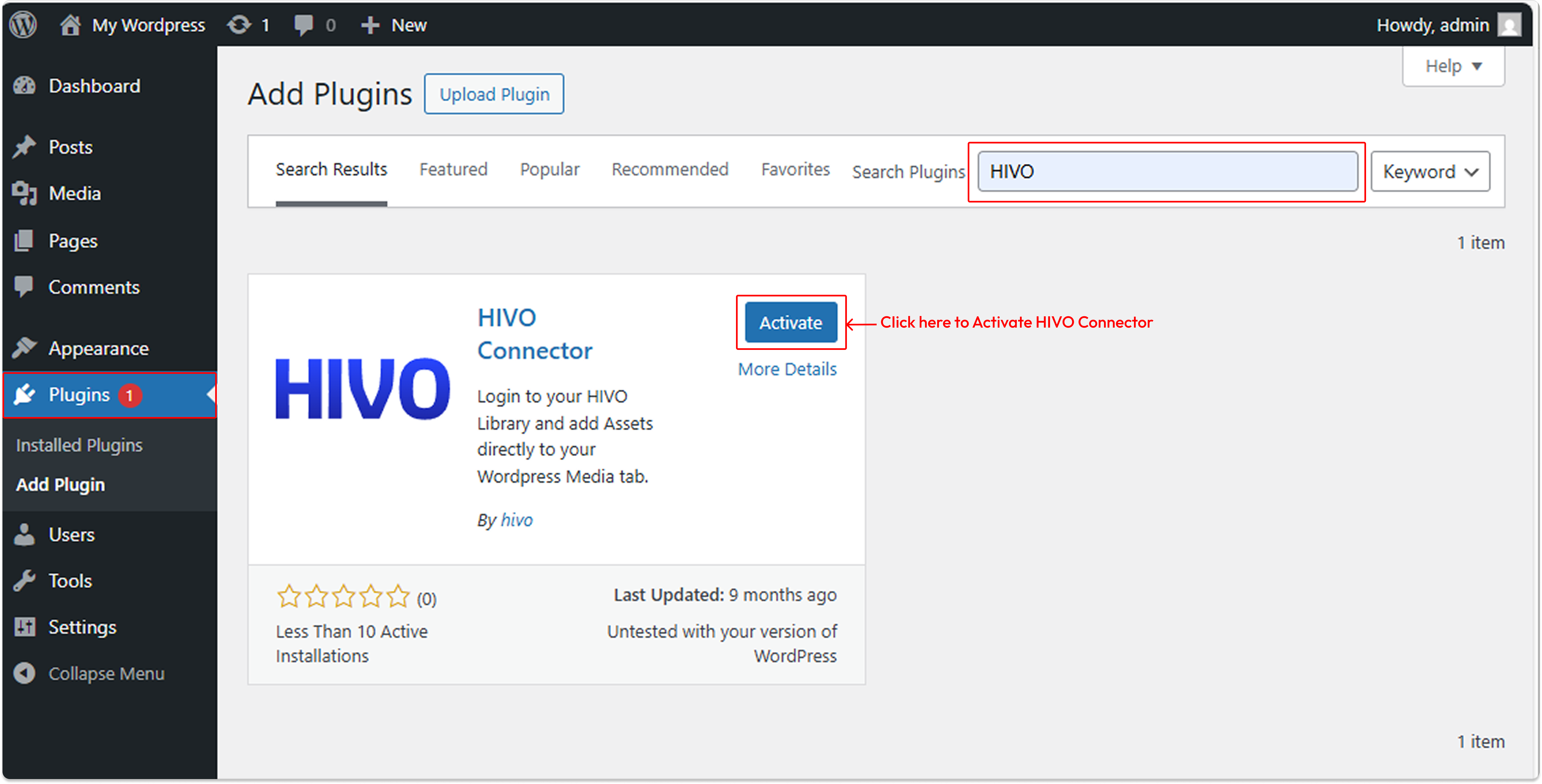
* Navigate to Plugins -> Add New Plugin
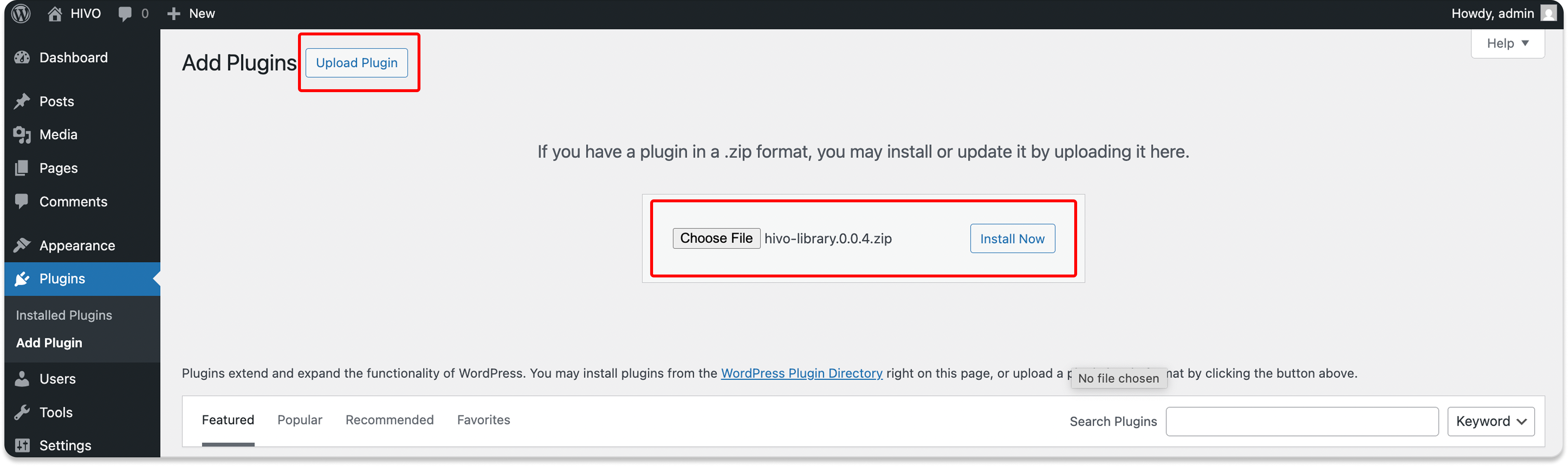
* **Search** and **select the HIVO Connector** plugin Or **upload the plugin file** and click Activate. *Download the HIVO Connector plugin* [***here***](https://wordpress.com/plugins/hivo-library)***.***
#### 🔹 Step 2: Log In HIVO
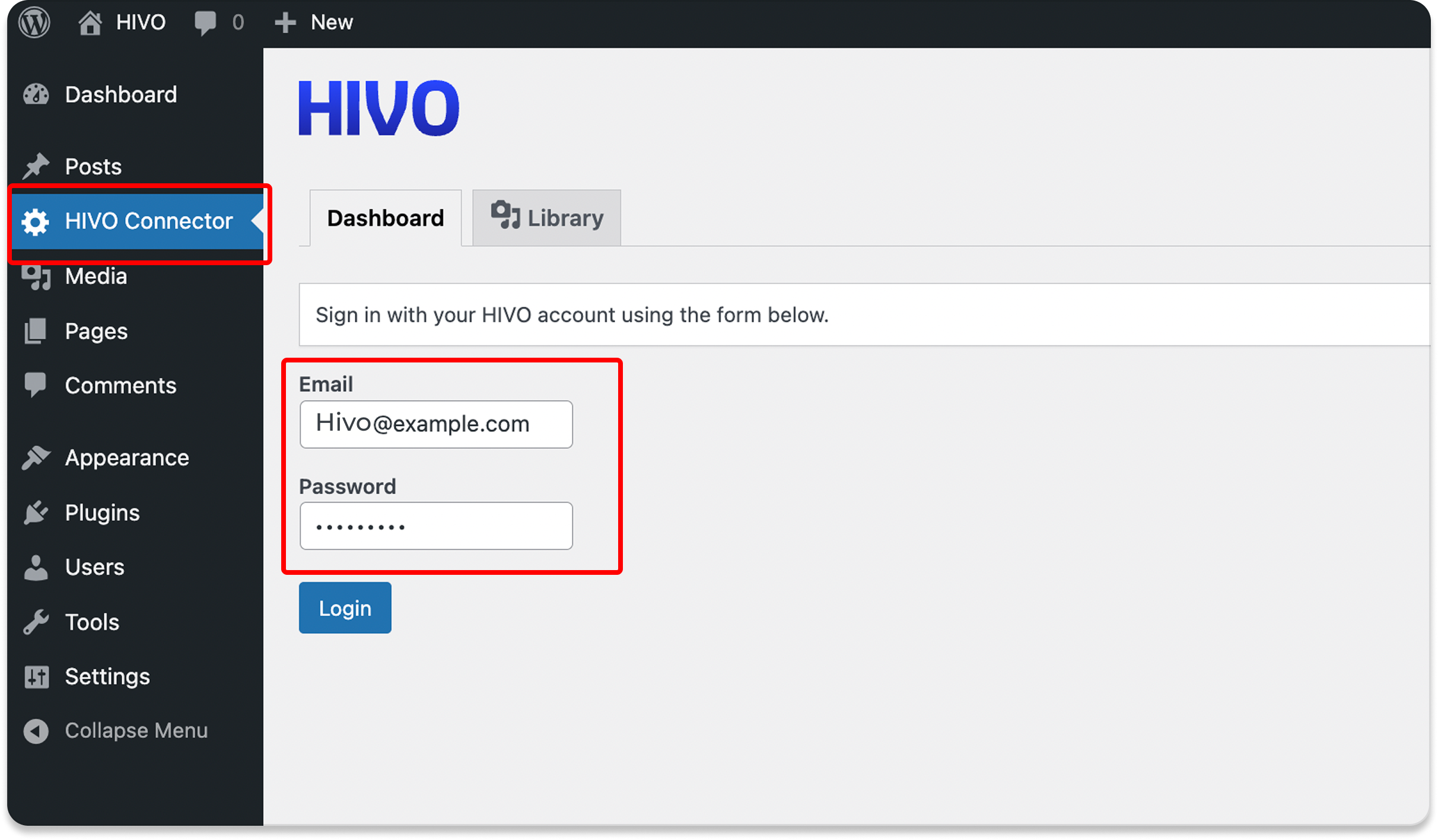
* Locate the “HIVO Connector” item in the left-hand menu of the Admin Panel.
* Log in using your HIVO account email and password.
### Import Assets to WordPress Media
This feature allows you to **directly import files from the HIVO** into your **WordPress Media Library**, helping you manage files locally and use them **flexibly for various purposes on your website.**
* **Access HIVO Connector**
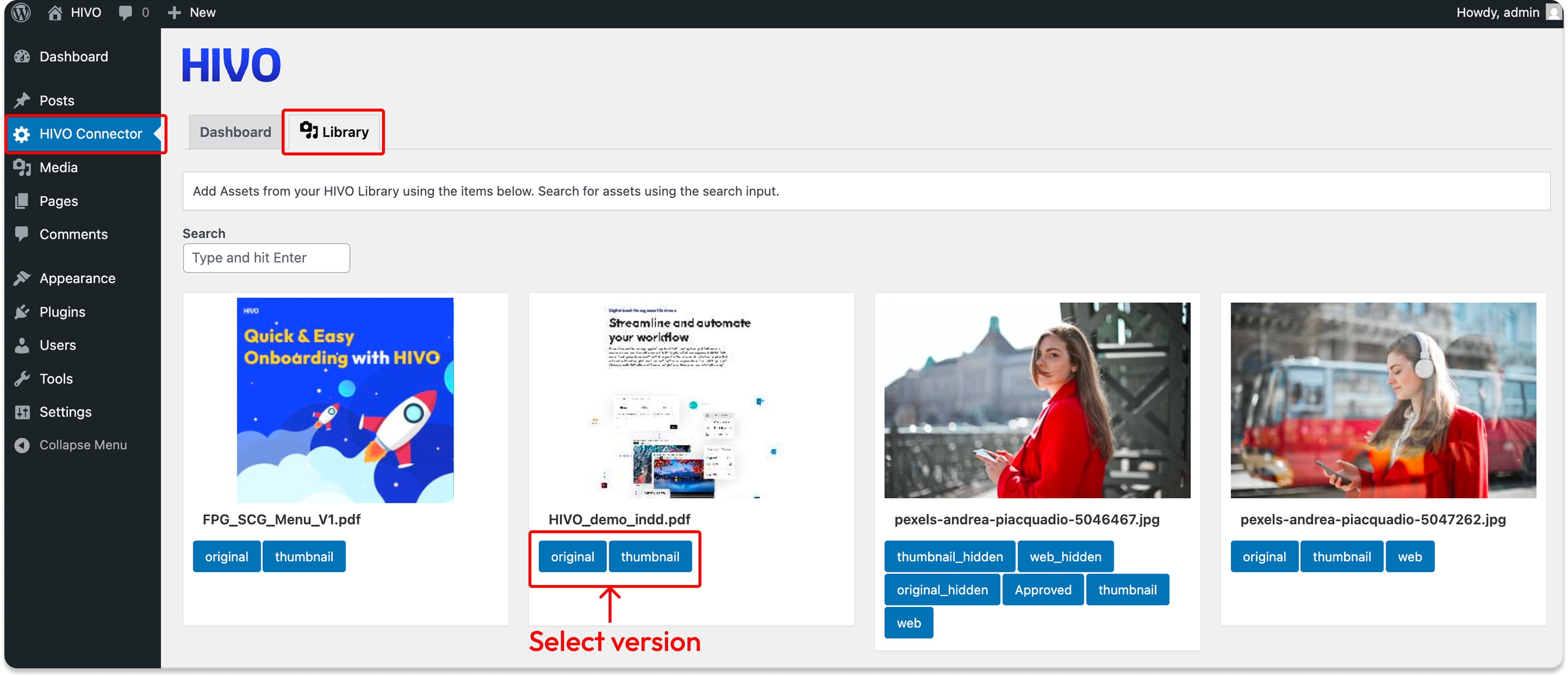
* In the WordPress Admin Panel, click on the **'HIVO Connector'** item in the left-hand menu.
* Ensure that you have successfully logged in with your HIVO account email and password.
* **Open the HIVO Library:** Select the 'Library' tab located at the top of the screen (under the HIVO logo).
* **Import Asset to WordPress Media Library**
* Use the search bar or available filters to find the exact image or video you want to bring into WordPress.
* Select the **required version**, and the system will automatically execute the Import command.
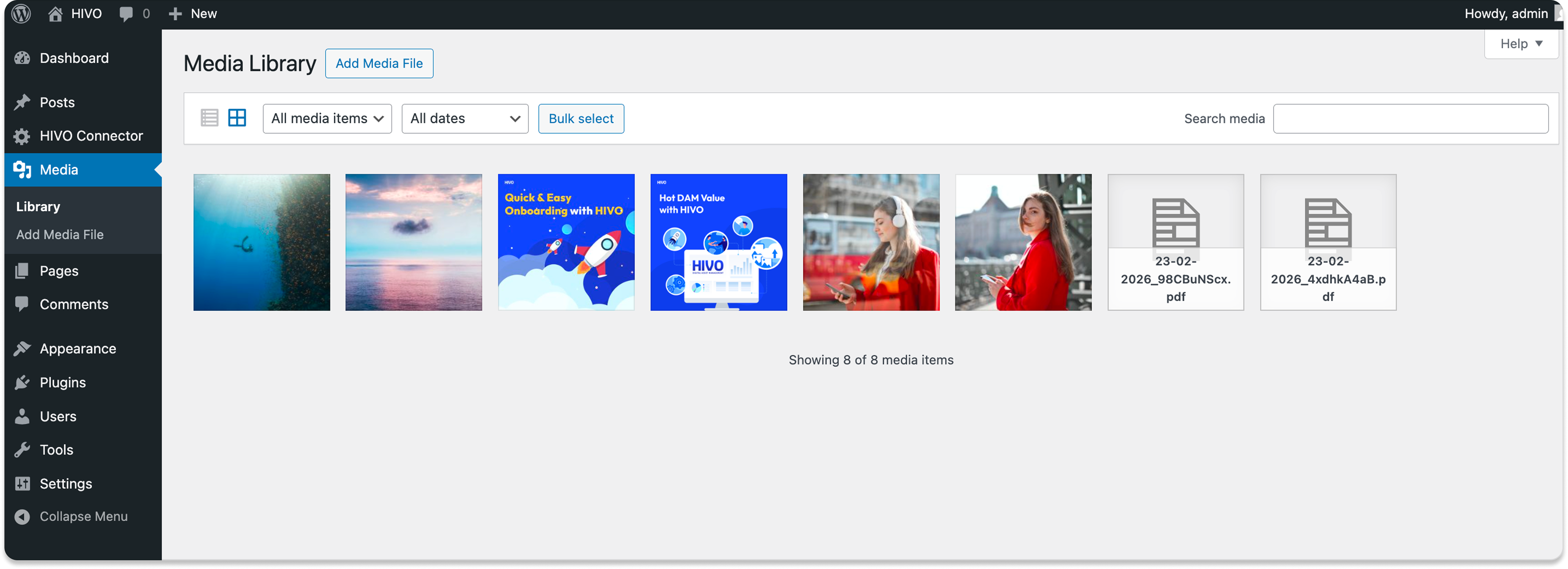
After clicking, the file will be transferred from HIVO to your WordPress Media Library with just one click. You can then go to **Media > Library in WordPress** to view the newly added file and start using it for your posts or pages.
### Added HIVO Asset Block to WordPress Editor
HIVO plugin adds a dedicated block to the WordPress editor, allowing you to insert assets directly into your posts or pages using CDN link.
#### 🔹 Step 1: **Access HIVO block**
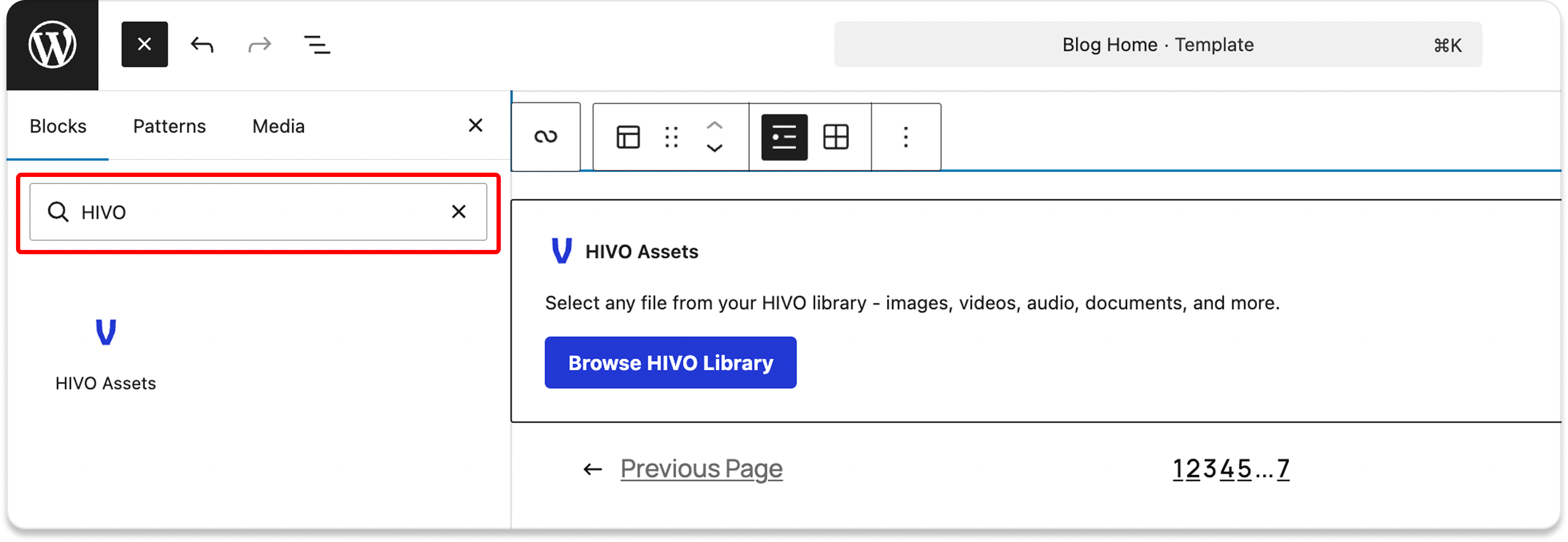
* In the block search box, type "HIVO" in the search bar to find the block. Then, lick the HIVO icon to access the block to your page.
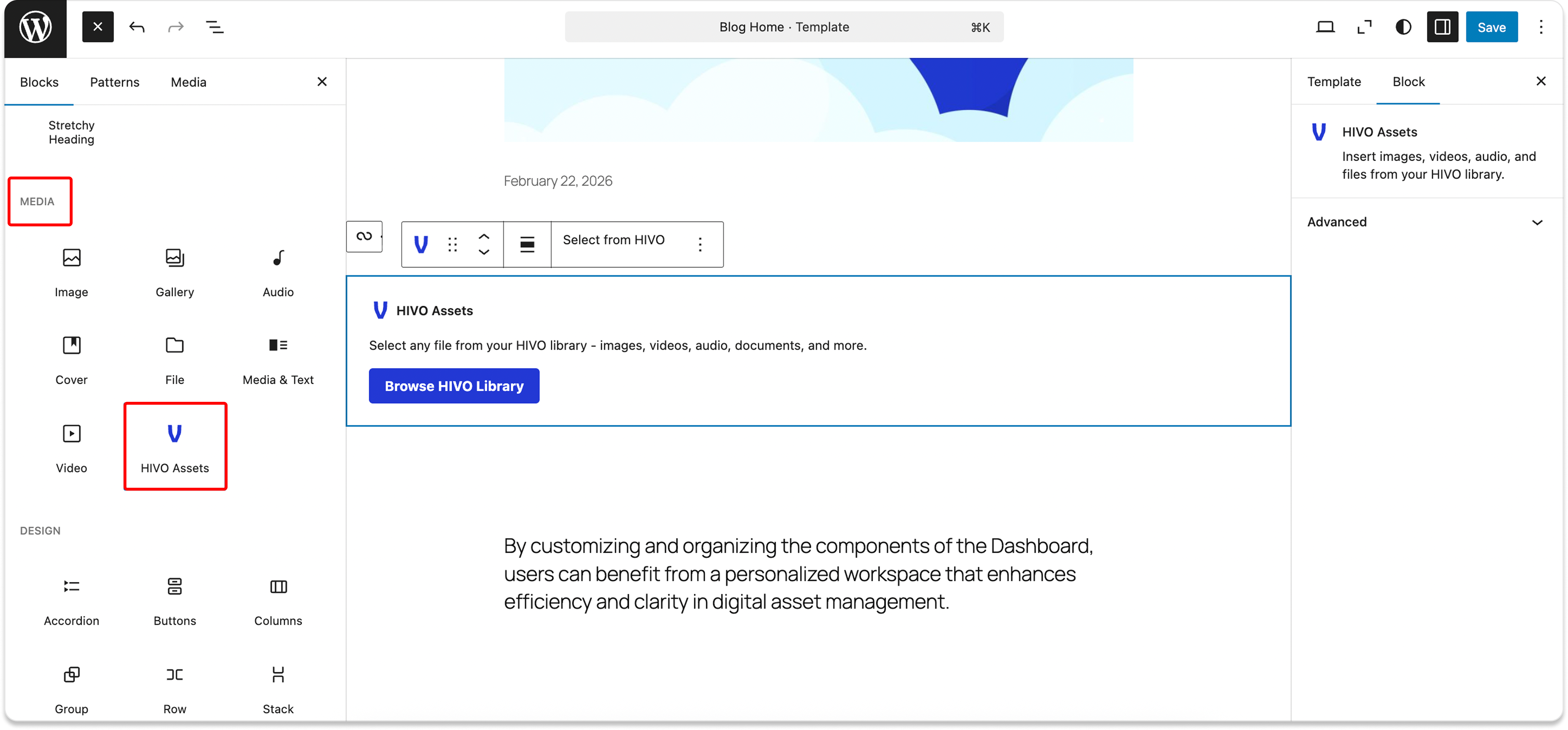
* Or scroll down to the Media category and look for the HIVO logo.
#### 🔹 Step 2: Add an asset using CDN link
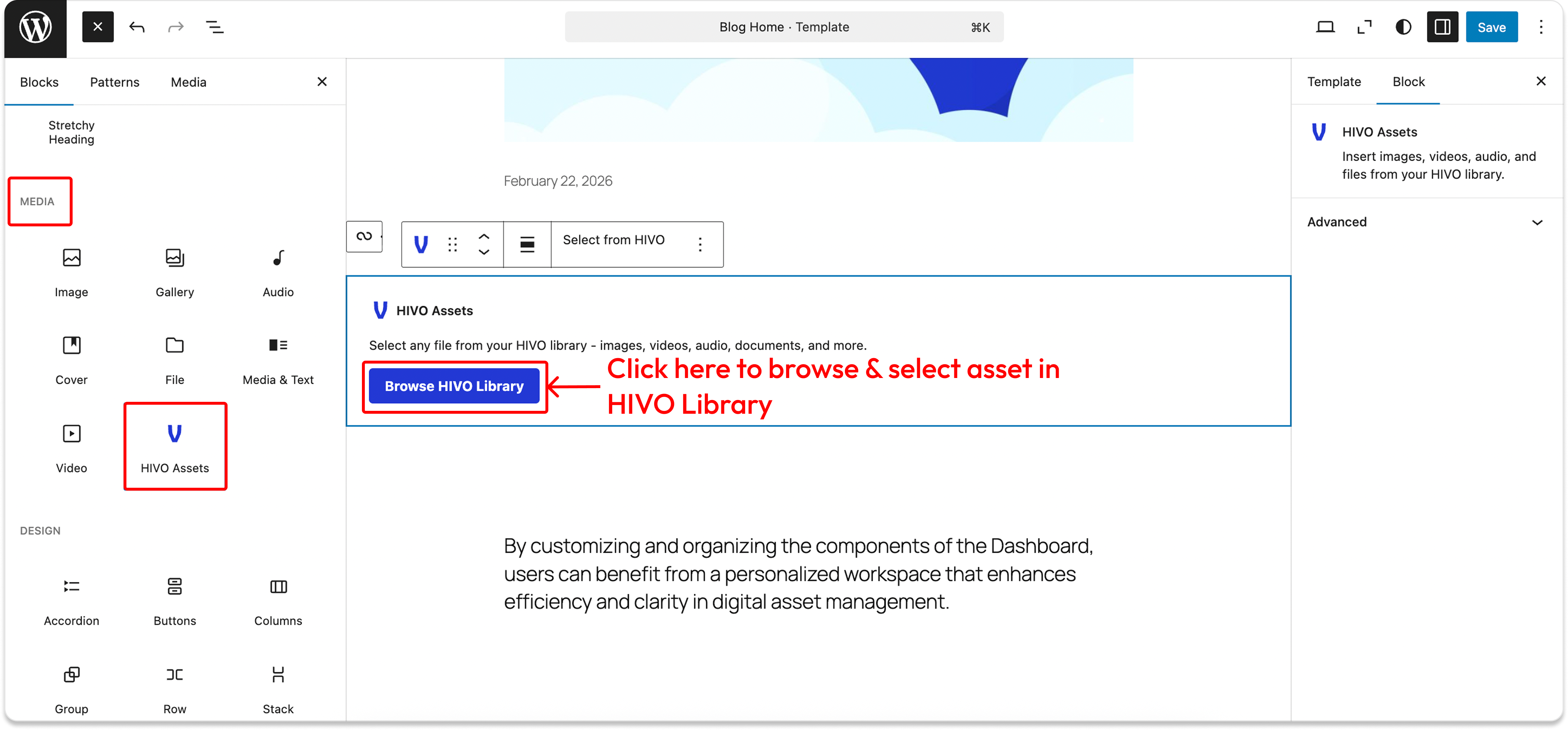
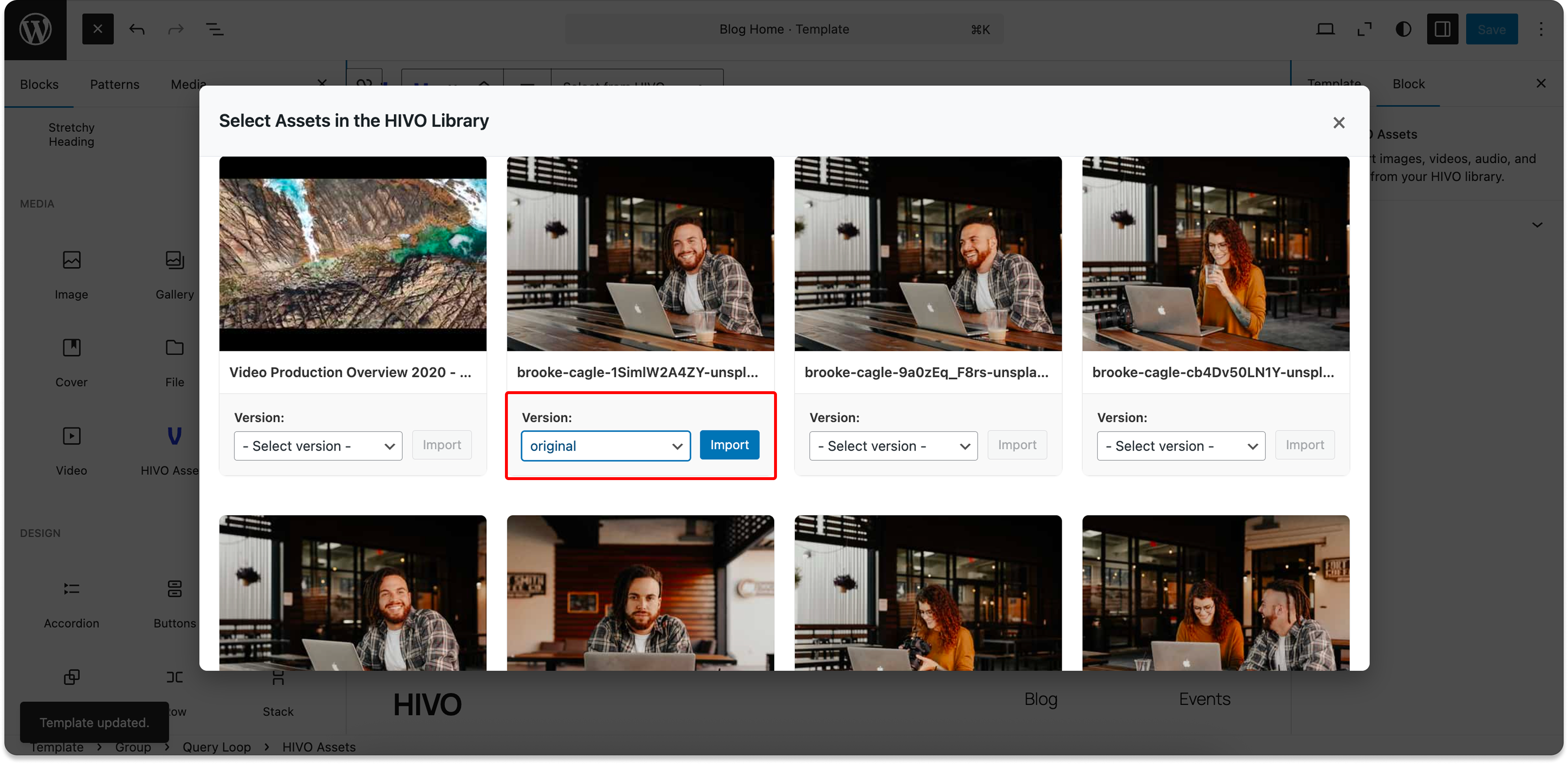
* After accessing HIVO block, click the '**Browse HIVO Library'** button to open your HIVO library dialog.
* Use the search bar within the HIVO Library to find your desired asset.
* Select the specific version you need and click **'Import'** to add the asset directly into the editor.
#### 🔹 Step 3: Managing Assets
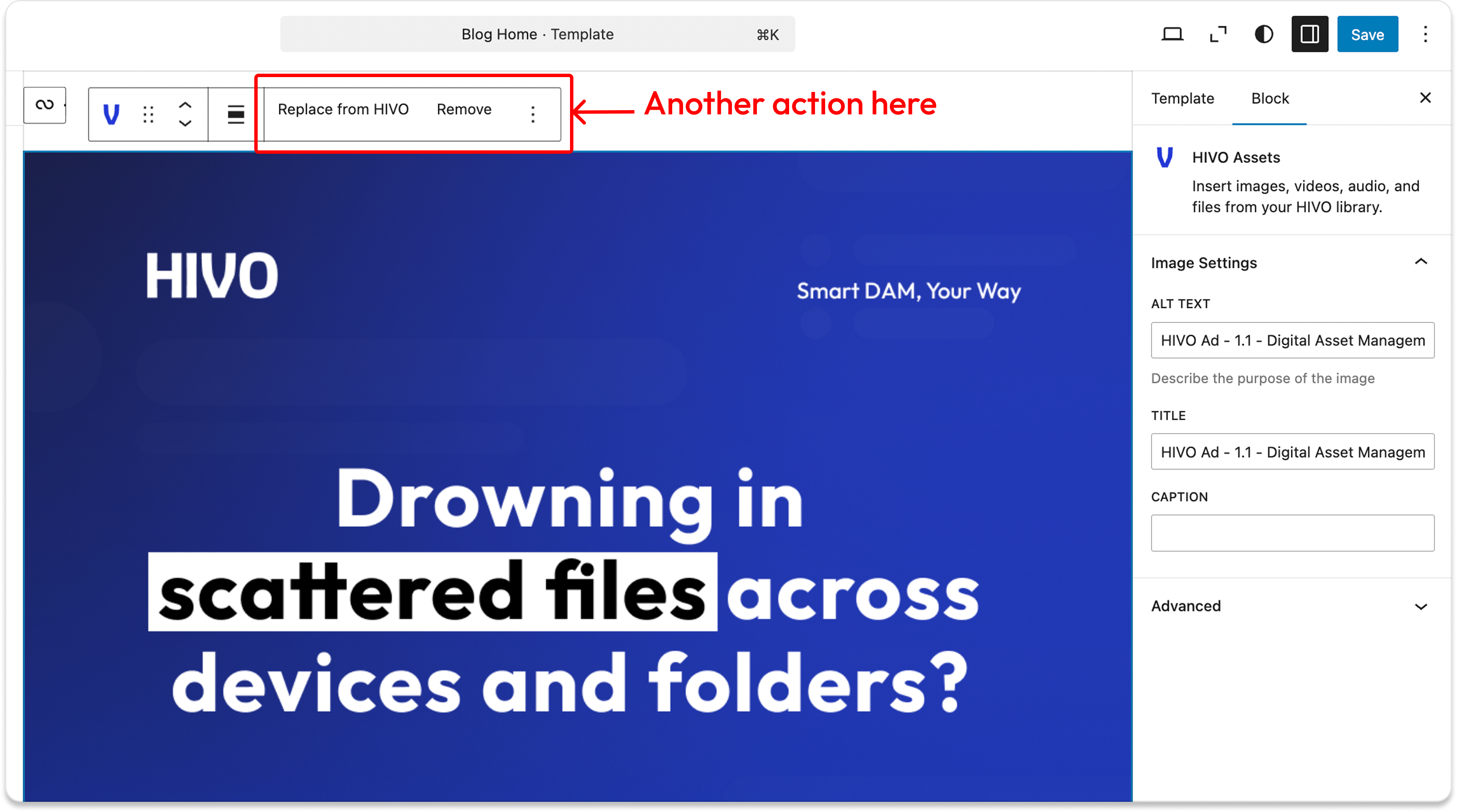
* **Replace:** You can select '**Replace asset from HIVO**' if you need to swap the image/video for a different one.
* **Remove:** Simply delete the block and repeat the steps above to add a fresh asset from your library.
#### How to delete a HIVO Asset Block in WordPress
To remove an asset inserted from HIVO or to delete the entire block from your post, follow these steps:
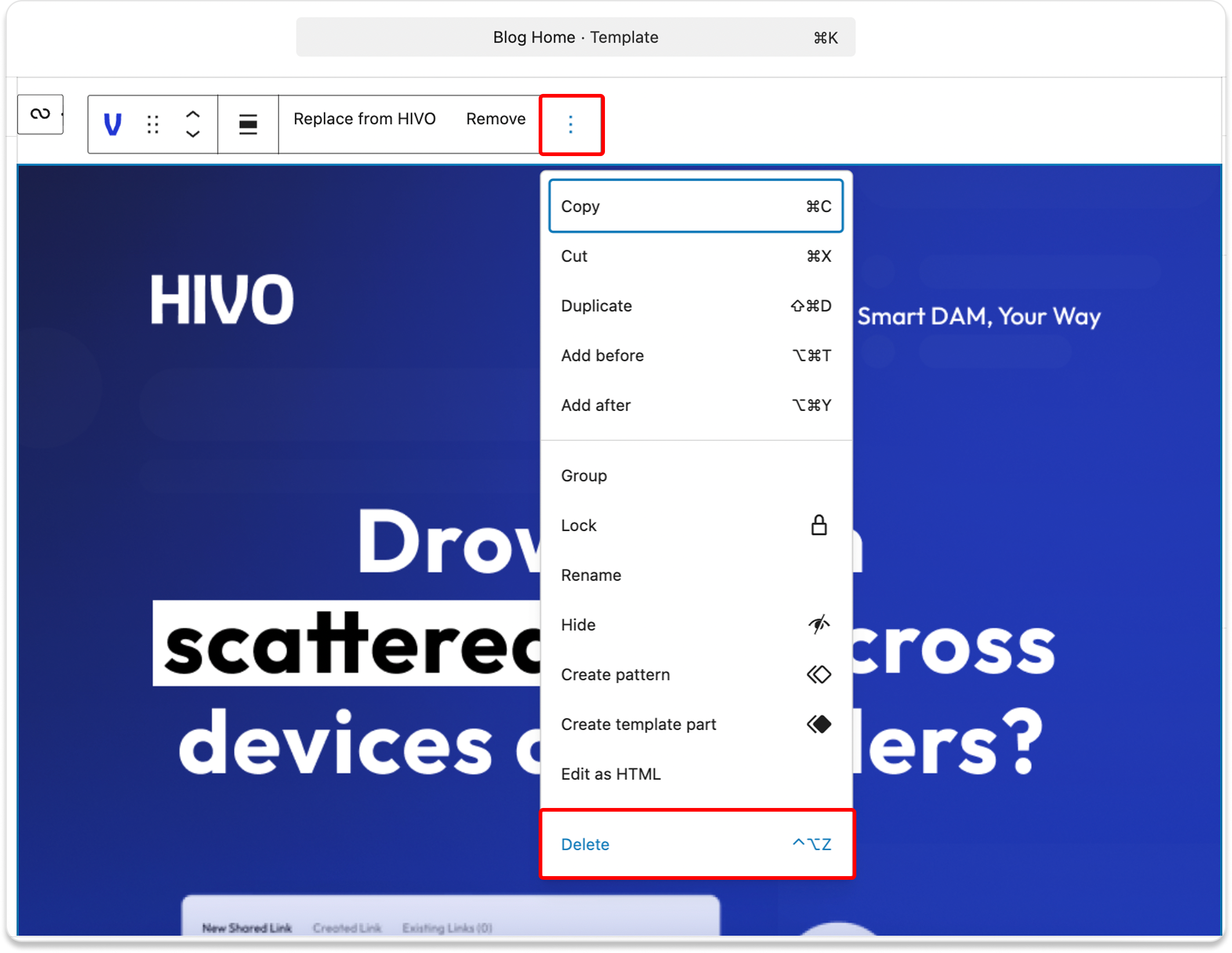
* **Select the Block:** Click on the image or the HIVO Assets container you wish to remove.
* **Open the Options Menu:** On the small toolbar appearing directly above the block, click the three vertical dots (Options) icon on the right side.
* **Perform Deletion:** Scroll to the bottom of the dropdown menu and select Delete.
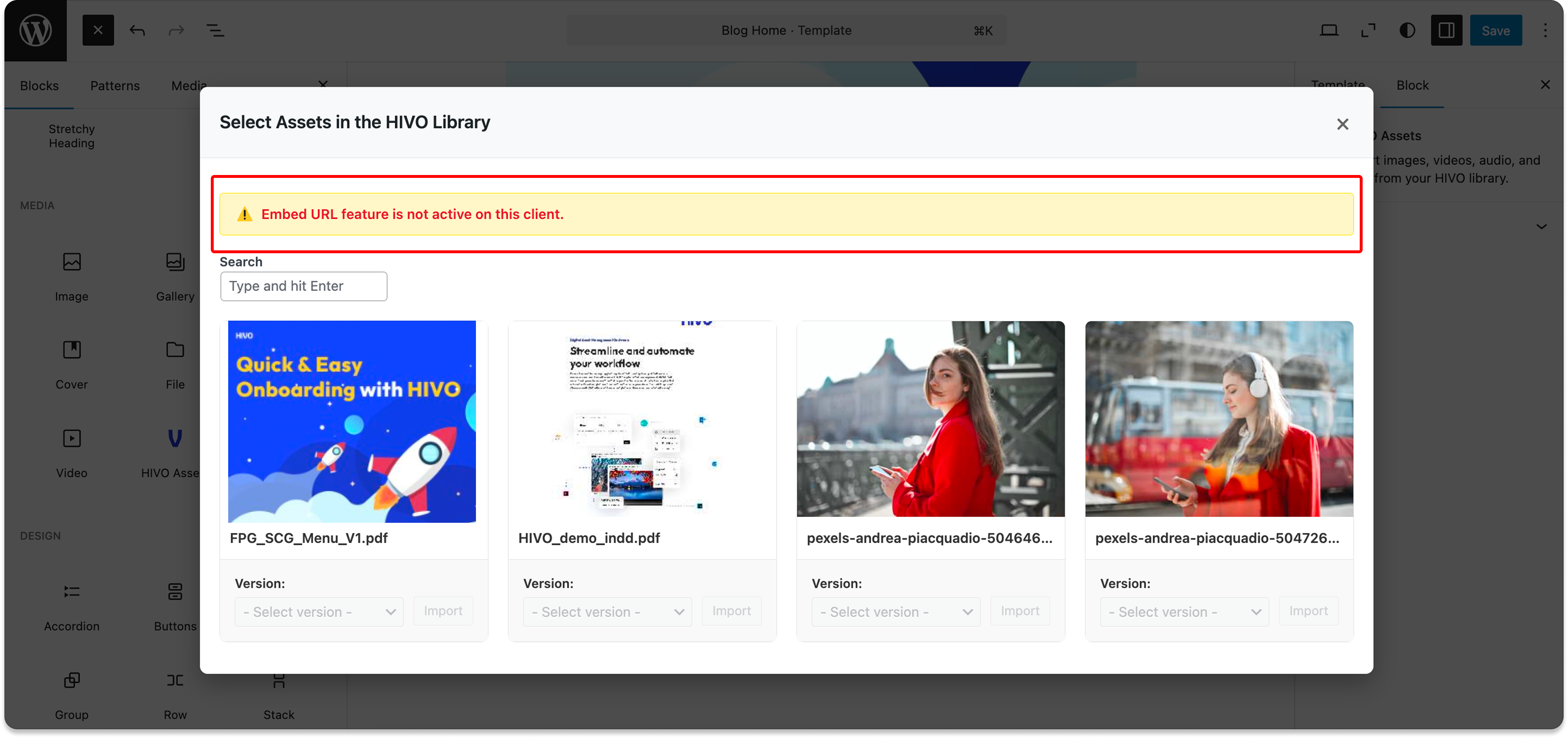
👉 **Note:** Your HIVO account must have the CDN feature enabled to utilize this specific function.
If you have any questions, don't hesitate to ask, we're always here to help!
---
# Agent Instructions
This documentation is published with GitBook. GitBook is the documentation platform designed so that both humans and AI agents can read, navigate, and reason over technical content effectively. Learn more at gitbook.com.
## Querying This Documentation
If you need additional information that is not directly available in this page, you can query the documentation by asking a question.
Perform an HTTP GET request on the following URL with the `ask` and `goal` query parameters:
```
GET https://support.hivo.co/integrations/wordpress.md?ask=&goal=
```
`ask` is the immediate question: it should be specific, self-contained, and written in natural language.
`goal` is what the user is ultimately trying to achieve, the reason they need the answer. Sharing it helps GitBook give you a better, more relevant answer. A goal is most helpful when it describes the outcome the user wants rather than restating the question. For example, with `ask=how do I create an API token`, a goal like `automate deployments from our CI pipeline` lets GitBook tailor the answer to that use case.
The response will contain a direct answer to the question and relevant excerpts and sources from the documentation.
Use this mechanism when the answer is not explicitly present in the current page, you need clarification or additional context, or you want to retrieve related documentation sections.