# Automatically add assets to a Collection (via rule settings)

The **Automated Collection** feature allows Admins to quickly and automatically add assets to collections. Instead of manually selecting each Asset to add to a Collection, you can set up **automation rules**. When an Asset is uploaded and meets the defined conditions, the system will automatically add that Asset to the corresponding Collection.&#x20;

#### ✨ **Key Benefits**

* Save time on asset categorization.
* Ensure consistency in data organization.
* Reduce errors from manual asset selection.
* Automatically organize assets into themes such as events, key people, locations, content types, etc.

### **How to Set Up an Automated Collection**

To set up Automated Collection, follow these steps:

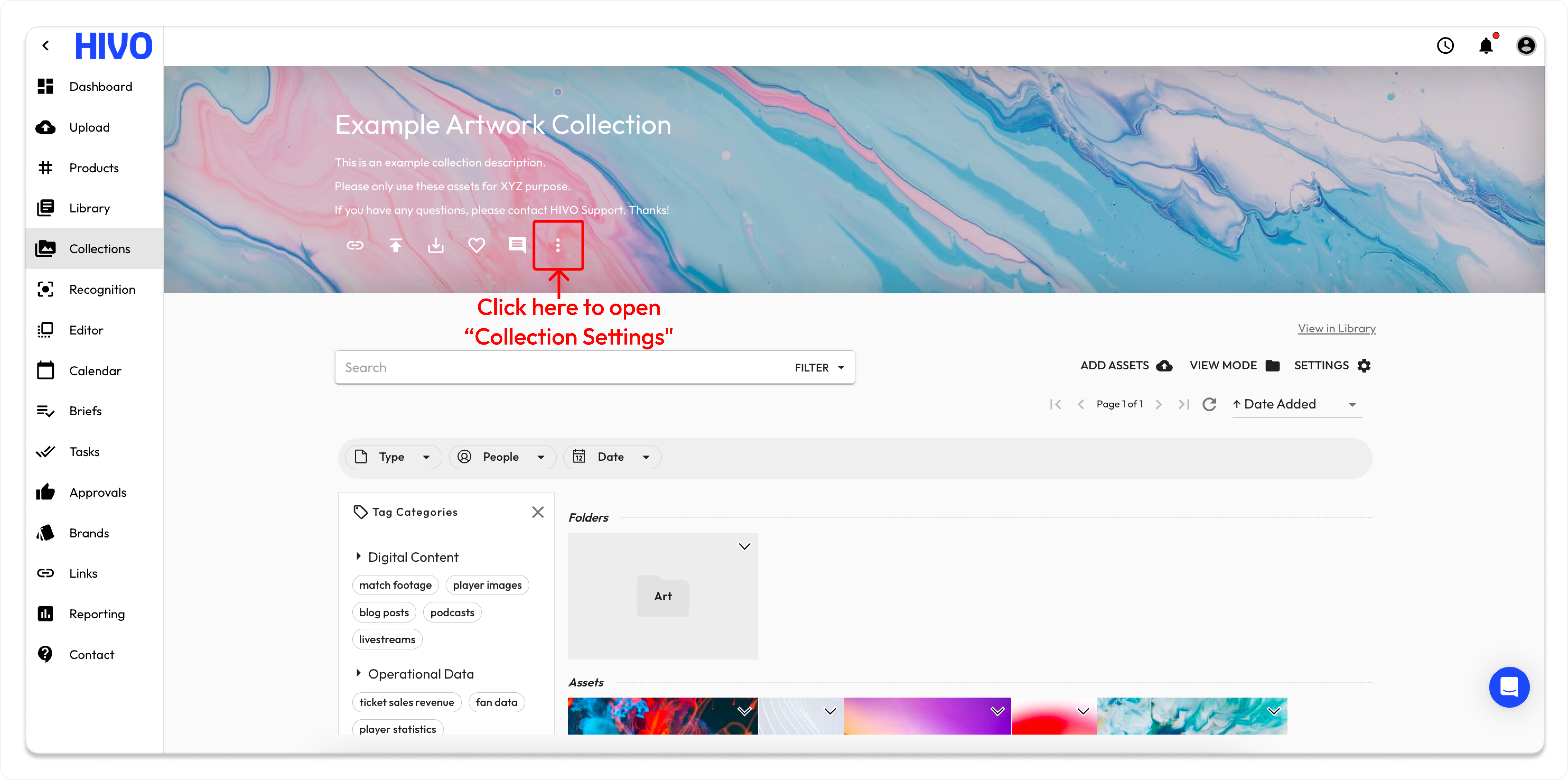
* Step 1: Go to the **Collection Detail** page.
* Step 2: Click on the **three-dot Settings icon** in the top right corner.

<figure><img src="/files/IptJ5Gk4Ymh3I5JJwFEb" alt=""><figcaption><p>Open "Collection Setting"</p></figcaption></figure>

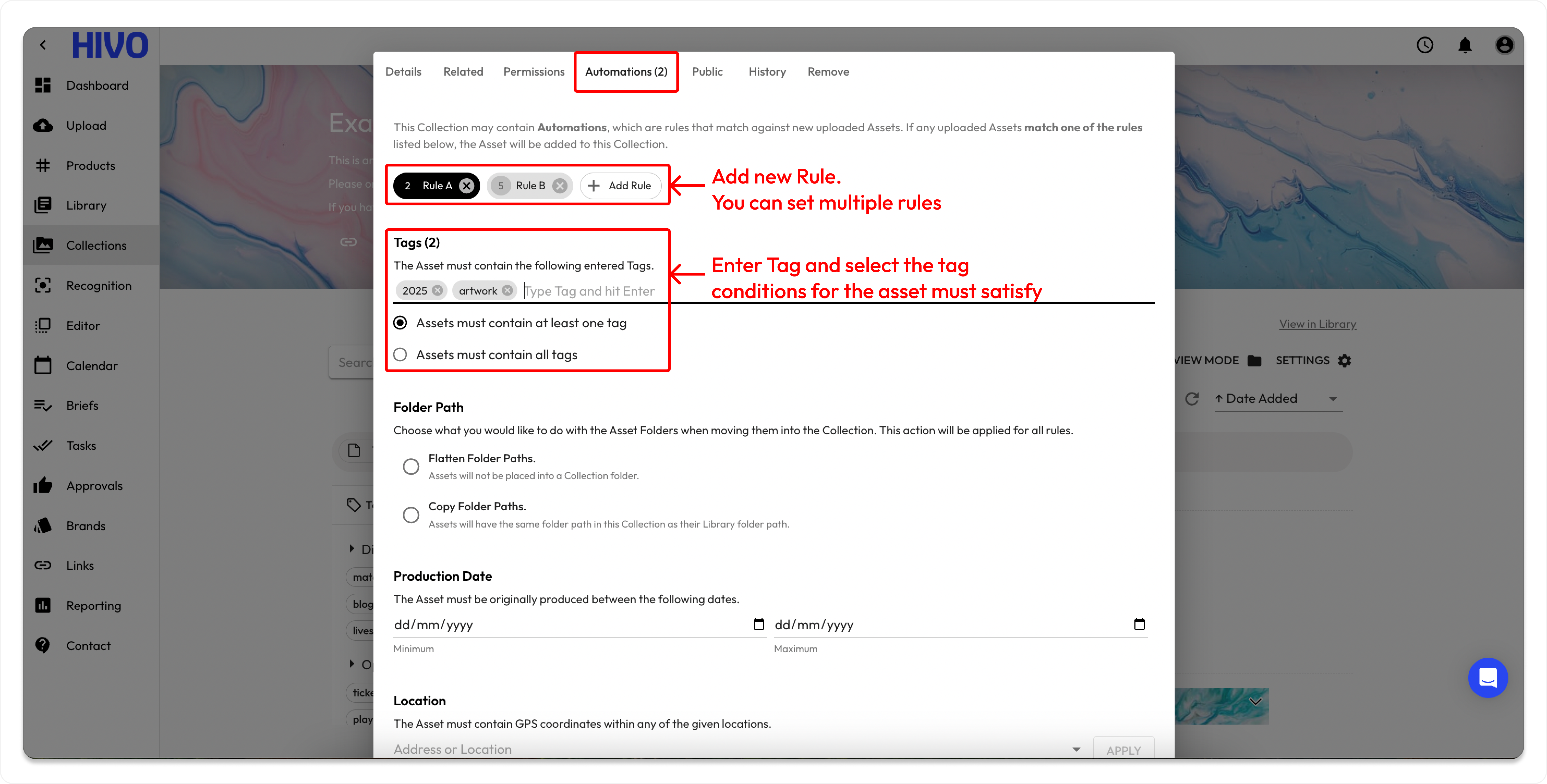
* Step 3: Select the **Automations** tab and start creating rules to define the conditions assets must meet.

<figure><img src="/files/3rINzWtLsoTRsOORxKAP" alt=""><figcaption></figcaption></figure>

📌 **Types of Conditions You Can Use in a Rule**

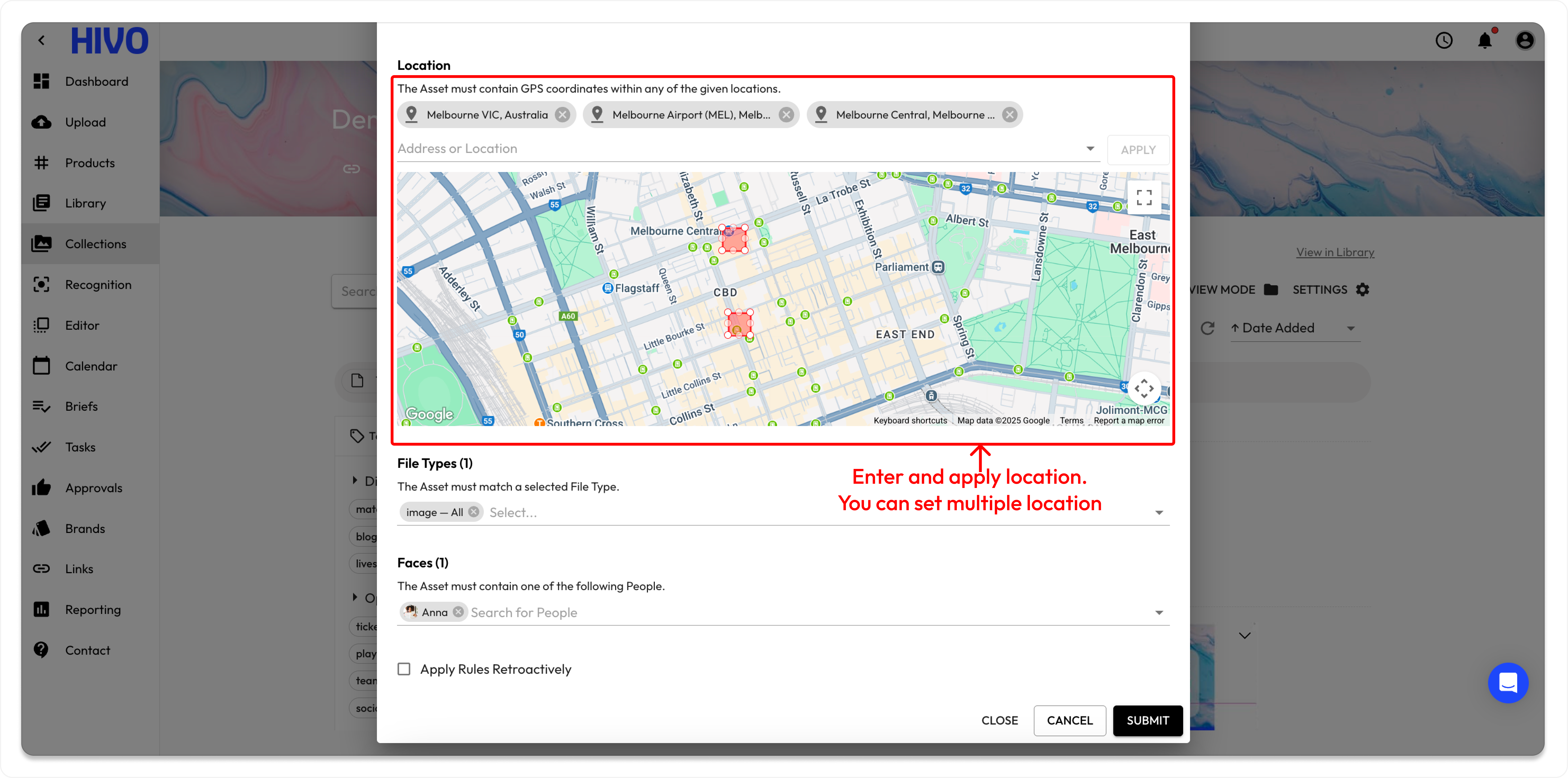
<table><thead><tr><th width="170.0025634765625">Condition</th><th>Description</th></tr></thead><tbody><tr><td><strong>Tags</strong></td><td>The asset must include at least one or all of the specified tags.</td></tr><tr><td><strong>Production Date</strong></td><td>The asset must have a production date within the selected date range.</td></tr><tr><td><strong>Location</strong></td><td>The asset must contain GPS coordinates that fall within a defined location.</td></tr><tr><td><strong>Type</strong></td><td>The asset must match the selected file type (e.g., image, video, etc.).</td></tr><tr><td><strong>Face</strong></td><td>The asset must contain the face(s) of one or more people specified in the collection.</td></tr></tbody></table>

<figure><img src="/files/Eux3WL6RkBrBSLVnK5VG" alt=""><figcaption><p>Apply location</p></figcaption></figure>

### **How Automation Rules Work**

* Each rule contains multiple condition fields (e.g., tags, production date, face detection, etc.). Any field left empty will be ignored.
* An asset must meet **all non-empty conditions** in a single rule to be added to the Collection.
* If there are multiple rules:\
  ➤ **If any uploaded Assets match one of the rules listed below, the Asset will be added to this Collection.**

If you have any questions, don't hesitate to ask, we're always here to help!


---

# Agent Instructions: Querying This Documentation

If you need additional information that is not directly available in this page, you can query the documentation dynamically by asking a question.

Perform an HTTP GET request on the current page URL with the `ask` query parameter:

```
GET https://support.hivo.co/collections/how-to-add-asset-s-to-the-collection-s/automatically-add-assets-to-a-collection-via-rule-settings.md?ask=<question>
```

The question should be specific, self-contained, and written in natural language.
The response will contain a direct answer to the question and relevant excerpts and sources from the documentation.

Use this mechanism when the answer is not explicitly present in the current page, you need clarification or additional context, or you want to retrieve related documentation sections.