> For the complete documentation index, see [llms.txt](https://support.hivo.co/llms.txt). Markdown versions of documentation pages are available by appending `.md` to page URLs; this page is available as [Markdown](https://support.hivo.co/collections/how-to-add-asset-s-to-the-collection-s/add-asset-s-from-the-library-to-a-collection.md).
# Add asset(s) from the Library to a Collection
The **Library Actions** feature allows you to add or remove assets from one or more Collections in bulk, making it very useful when managing multiple assets at once. Follow these steps:
#### 🔹 Step 1: **Access the Library**
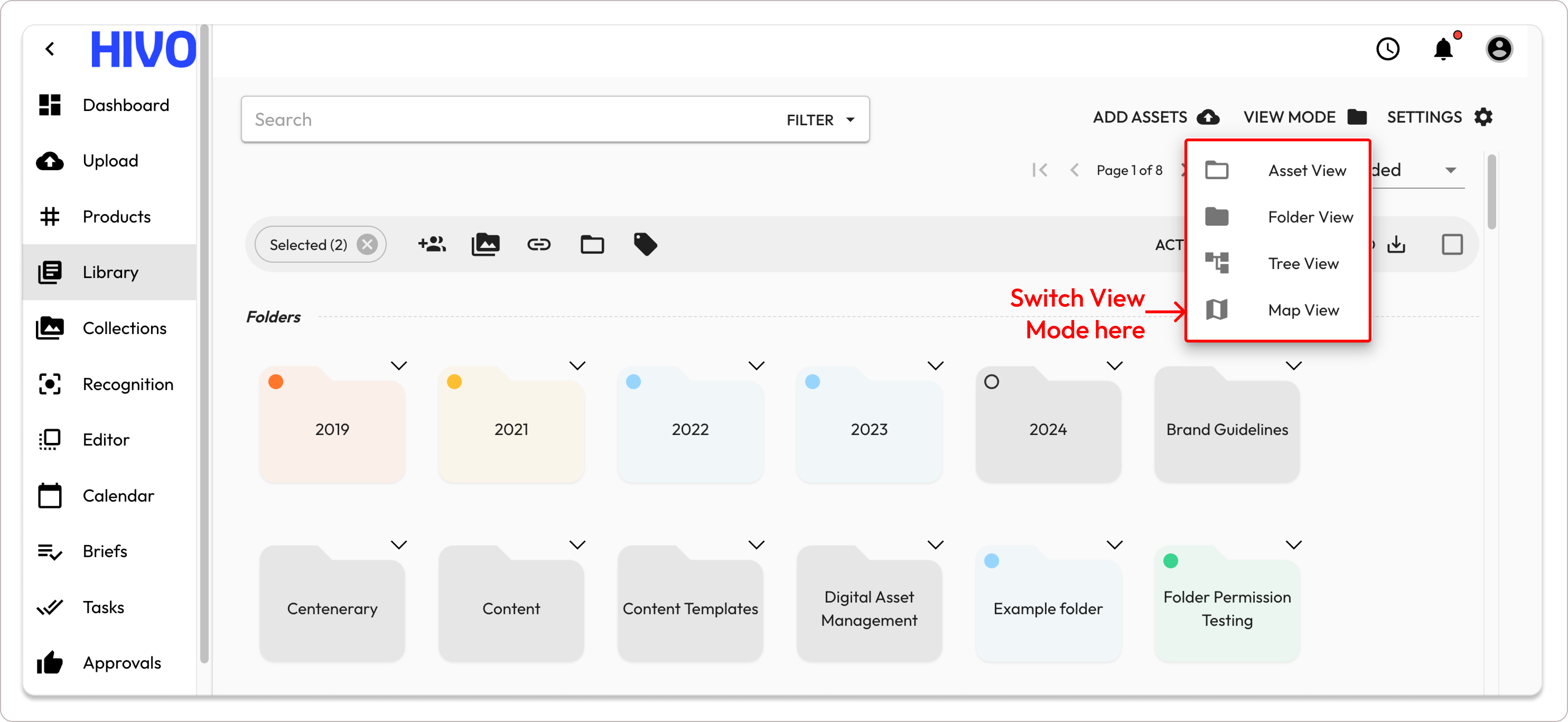
Go to Library from the main navigation bar to see a list of existing assets if in Asset View mode. Or switch to folder or Tree mode to choose depending on the number and location of assets you need to select.
Switch view mode
#### 🔹 Step 2: **Select assets to add to a Collection**
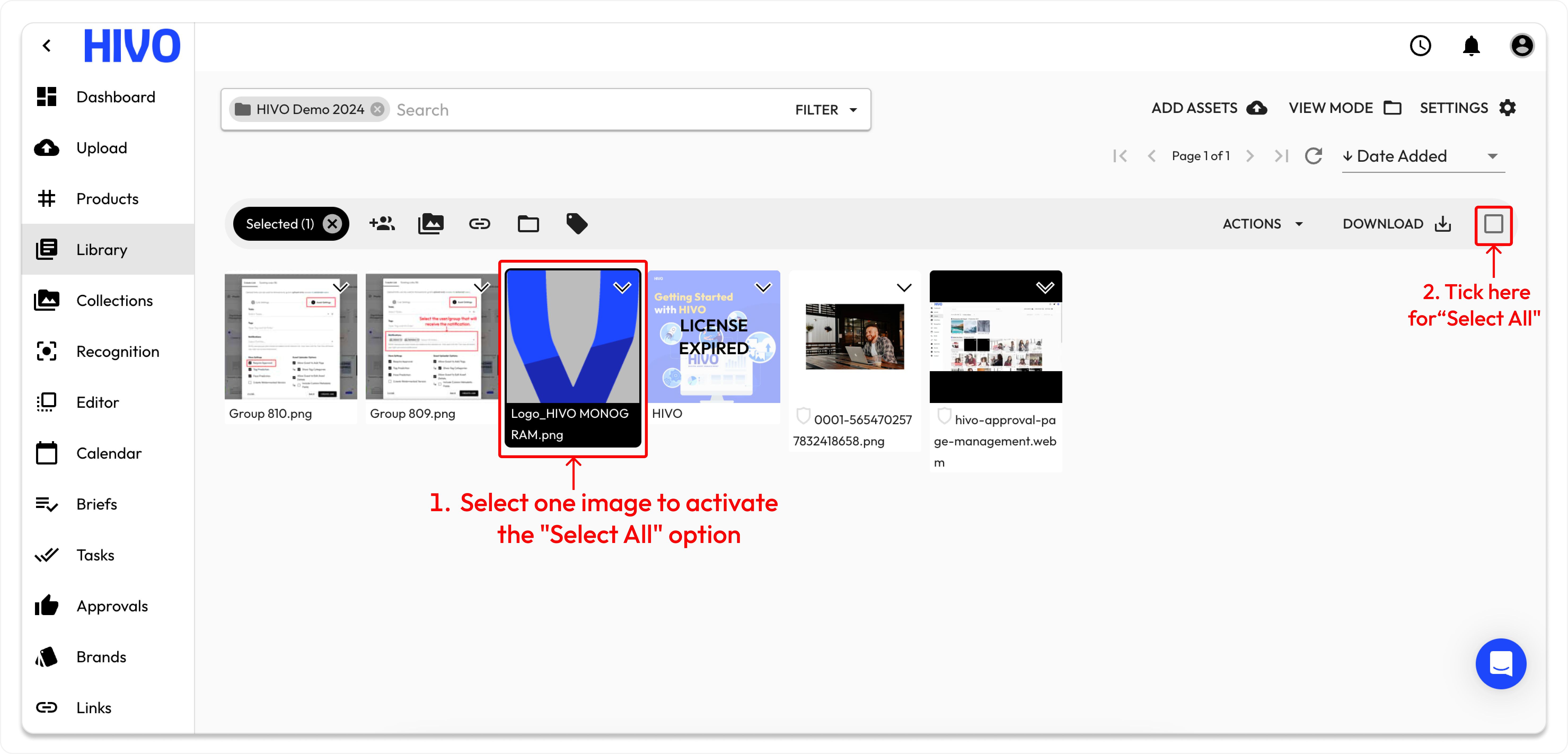
* Select one or multiple assets by ticking the checkbox at the corner of each asset.
* To select all visible assets, use the **“Select All”** in the right corner of the screen, next to the Download option.
Select asset to add to a Collection
#### 🔹 Step 3: Open the Edit Collections dialog
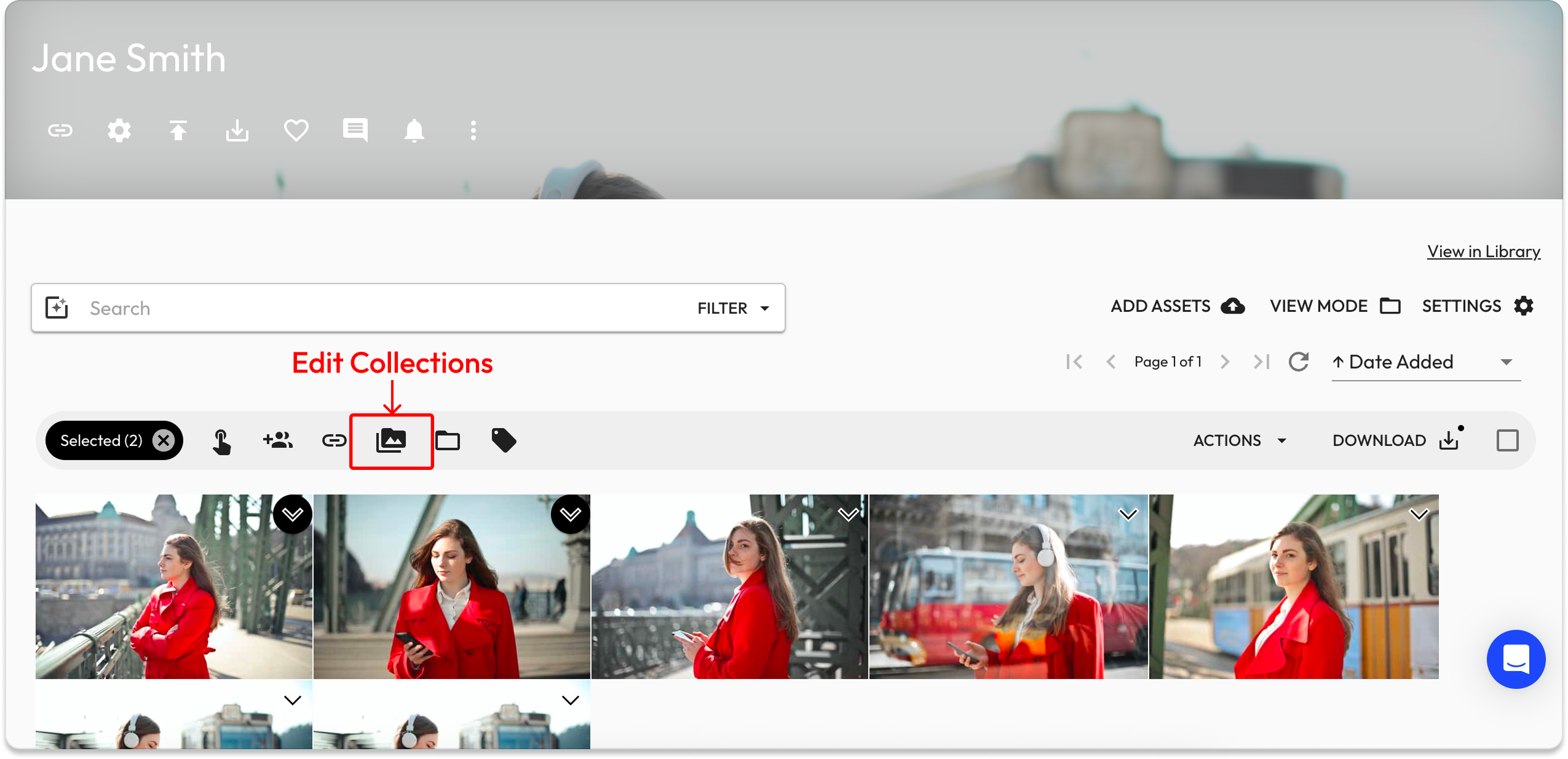
* Once selected, the **Selection Toolbar** will appear, click the **"Edit collection"** icon
* The Edit Collections (n) dialog will appear (where *n* represents the number of assets being edited).
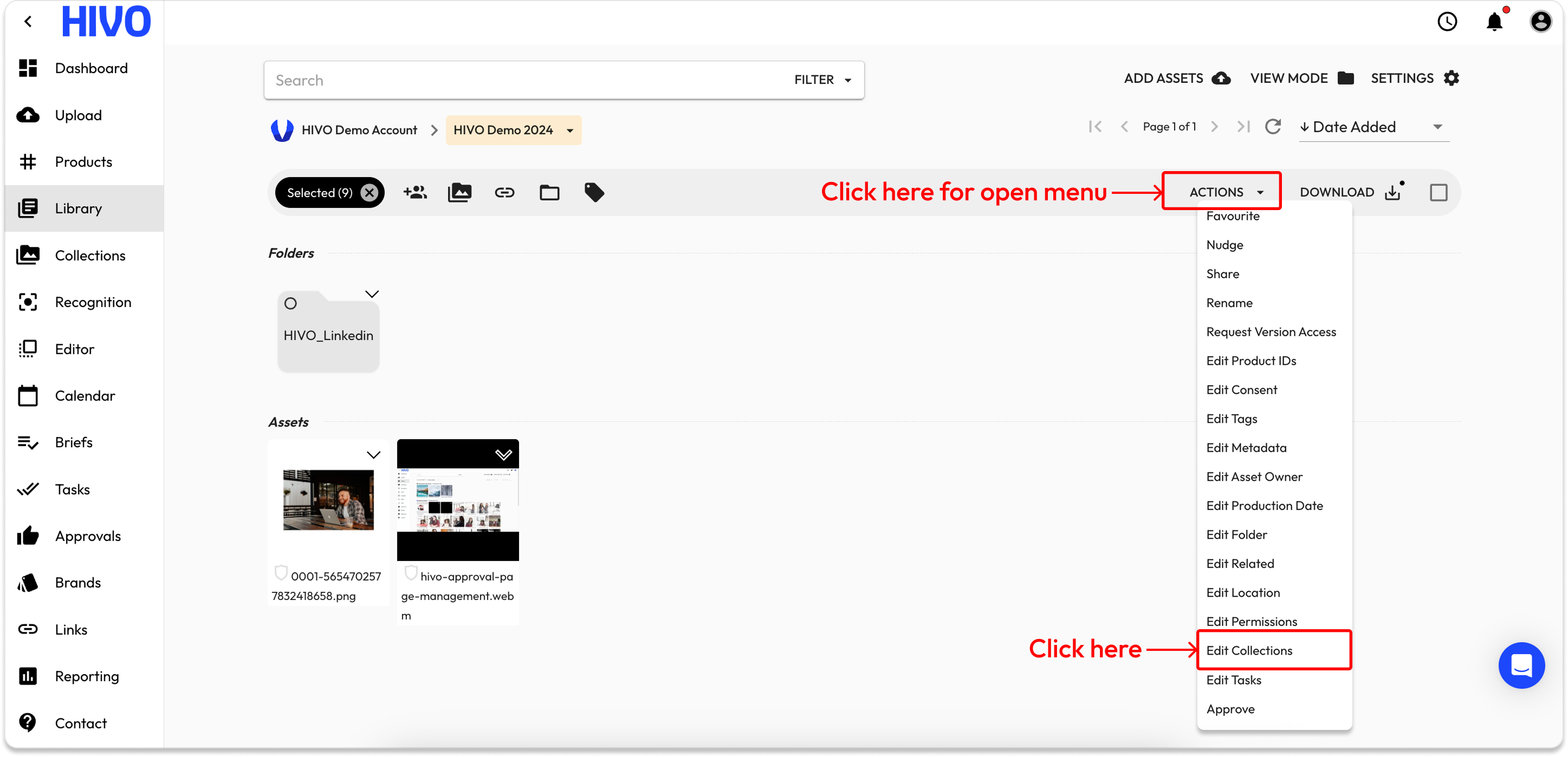
👉 Anothers way to do it: Click **Action Menu ->** Choose **“Edit Collection”** from the dropdown menu.
#### 🔹 Step 4: **Edit Collection**
* A dialog will appear allowing you to:
* Choose from an existing collection you want to **add** the assets.
* If you have permission, you can also **create a new Collection** from within this dialog.
* Select Collections you want to **remove** the assets from.
* Click **“Submit”** to confirm and update the asset Collection assignments.
If you have any questions, don't hesitate to ask, we're always here to help!
---
# Agent Instructions
This documentation is published with GitBook. GitBook is the documentation platform designed so that both humans and AI agents can read, navigate, and reason over technical content effectively. Learn more at gitbook.com.
## Querying This Documentation
If you need additional information that is not directly available in this page, you can query the documentation dynamically by asking a question.
Perform an HTTP GET request on the current page URL with the `ask` query parameter, and the optional `goal` query parameter:
```
GET https://support.hivo.co/collections/how-to-add-asset-s-to-the-collection-s/add-asset-s-from-the-library-to-a-collection.md?ask=&goal=
```
`ask` is the immediate question: it should be specific, self-contained, and written in natural language.
`goal` is optional and describes the broader end goal you are ultimately trying to accomplish on behalf of the user. GitBook uses it to tailor the answer towards what is most useful for that goal.
The response will contain a direct answer to the question and relevant excerpts and sources from the documentation.
Use this mechanism when the answer is not explicitly present in the current page, you need clarification or additional context, or you want to retrieve related documentation sections.
.png?alt=media&token=bbf79fe5-38a5-4db0-a1c3-5dff45c82fea)