> For the complete documentation index, see [llms.txt](https://support.hivo.co/llms.txt). Markdown versions of documentation pages are available by appending `.md` to page URLs; this page is available as [Markdown](https://support.hivo.co/client-profile/client-profile-settings/organisation-and-storage/disposal-and-retention-settings.md).
# Disposal & Retention Settings
### What is Disposal & Retention Settings?
**Disposal & Retention Settings** enable automated asset disposal rules after a set duration. This feature is vital for meeting legal requirements and ensuring internal policy compliance by allowing users to configure:
* **Date Trigger:** Define when the retention period begins.
* **Retention Period:** Specify how long assets must be retained.
* **Action After Trigger (Automated Actions):** Set actions to be executed upon expiry (Archive, Delete, or Move Folder).
### How to use Disposal & Retention Settings
* **User Right Required:** User must have the permission: *“Is Client Admin - User can manage the Client Profile”.*
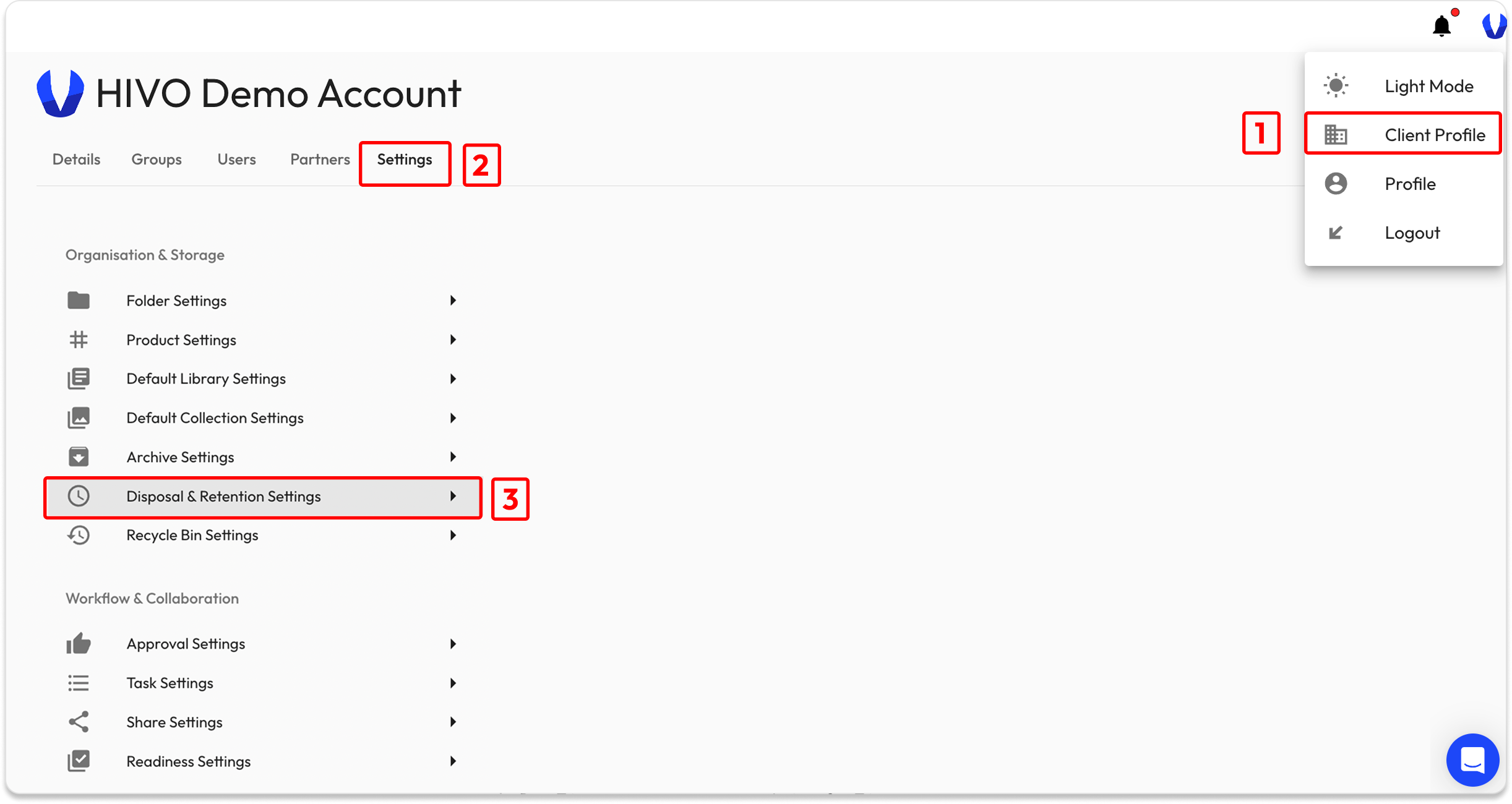
* Access Path: **Client Profile** → **Settings** → **Disposal & Retention Settings**
#### 🔹 Step 1: Create a New Rule
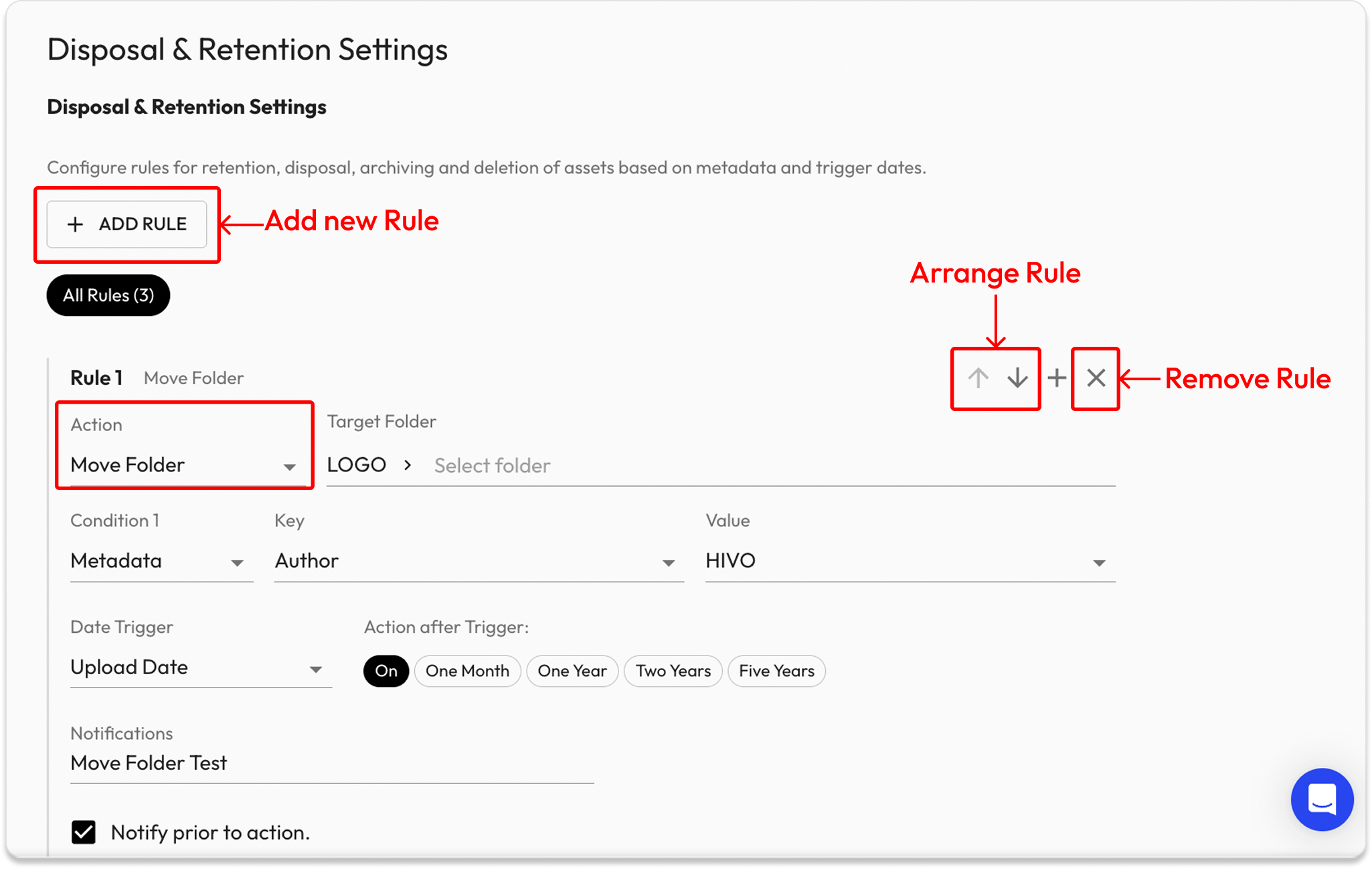
* **Add new Rule:** At the top of the page, click the "Add Rule" button.
* **Select an Action**: This defines what the system will do once the deadline is reached. Currently, HIVO supports the following actions: ***Archive, Delete, and Move Folder.***
* **To Remove a Rule**: Click the “x” icon next to the rule name.
* **To Arrange Rule:** Arrange the order of rules using the arrows (↑/↓). If multiple rules are met simultaneously, the system will check the sequence and execute the first matching rule
#### 🔹 Step 2: Configure Conditions
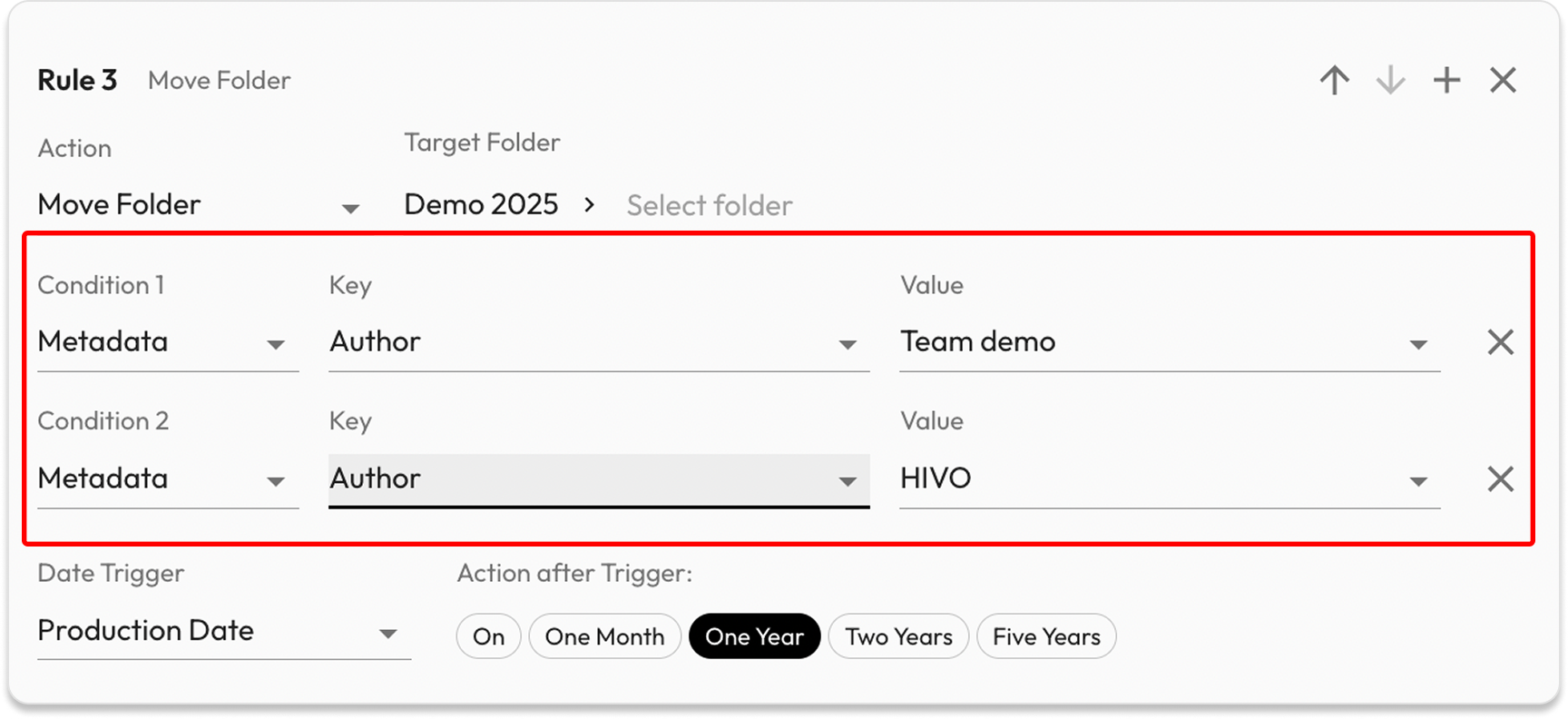
The Condition section allows you to define exactly which assets the rule will apply to.
* **Combining Conditions:** You can combine multiple conditions by clicking the plus (+) icon on the same row as the Rule name.
* **To remove a condition:** Click the “x” icon next to it.
* Example: *Condition Type:* Metadata | *Key:* Author | *Value:* HIVO
*-> This means the rule only applies to assets where the Metadata Key "Author" is set to "HIVO".*
#### 🔹 Step 3: Select the Date Trigger & Action After Trigger (Retention Period)
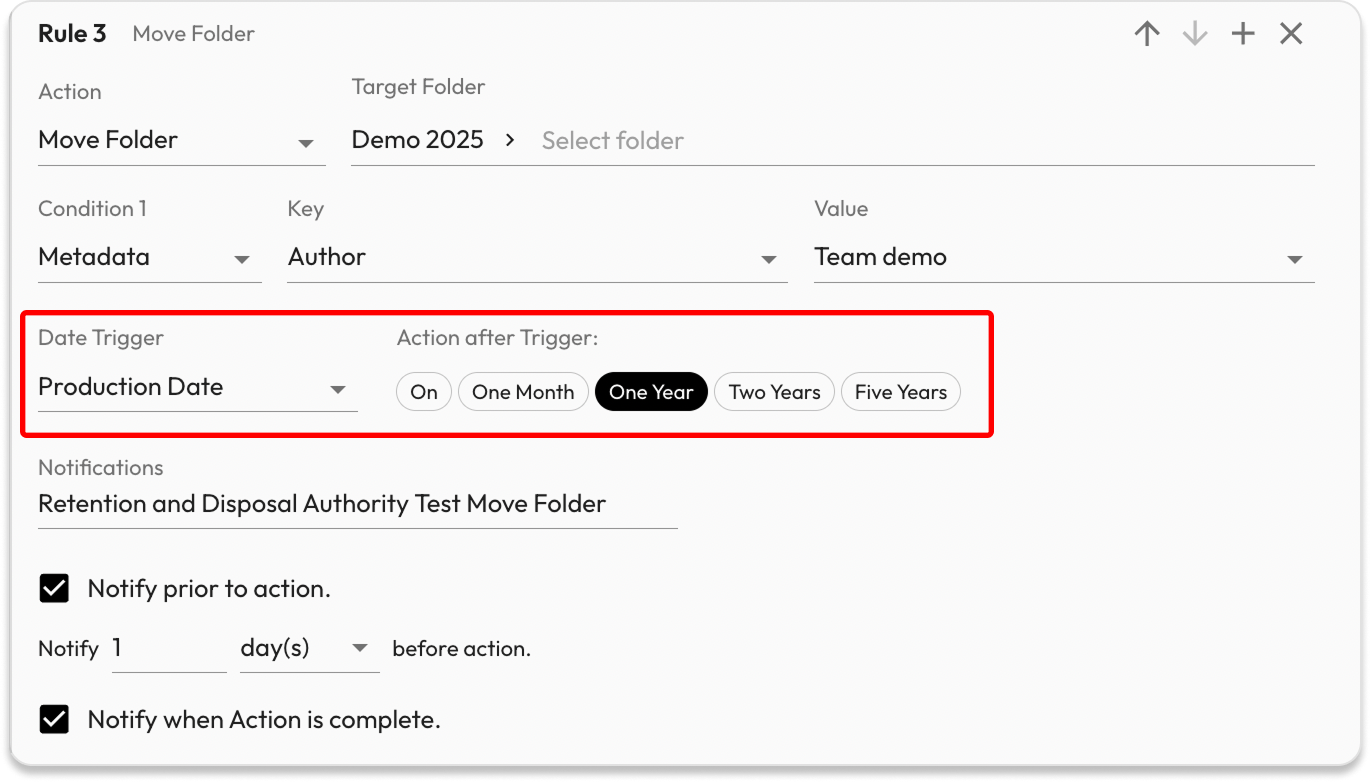
* **Date Trigger:** Select a date-based metadata key.
* The Date Trigger must be configured within the [**Metadata Disposal System Defaults**](https://support.hivo.co/client-profile/client-profile-settings/asset-and-metadata-management/metadata-settings#metadata-disposal-system-defaults-1).
* Otherwise, the system cannot calculate the retention period when the Date Trigger is Termination Date/ Date Superseded/ Expiry Date/ Incident Date/ Inspection Date.
* Example: *Select Production Date -> The system will start the retention countdown from the asset's specific Production Date.*
* **Action After Trigger (Retention Period)**: Choose the **duration for the retention period.**
* Example: *Select One Year -> This means the Disposal Action will occur exactly 1 year after the Date Trigger.*
* Select 'On' to execute the action immediately on the Date Trigger.
* **Disposal Action Date** = Date Trigger + Retention Period
* The Disposal Action Date is the date the HIVO system will perform the asset disposal action (Archive / Delete / Move Folder).
#### 🔹 Step 4: Configure Notifications
Monitor the process and receive alerts.
* **Admin Alerts:** Only Admin users will receive these notifications.
* **Timing:** Alerts can be sent either **before or after an action takes place.**
* **Notify prior to action:** You can enter the number of days in advance that you would like to receive a notification before the action takes place.
* This notification is for warning purposes only and does not automatically cancel the action.
* If you need to prevent the action from occurring, you must modify or disable the rule before the Disposal Action Date.
* It is strongly recommended to enable this feature when the action is **Delete** to avoid unintended data loss.
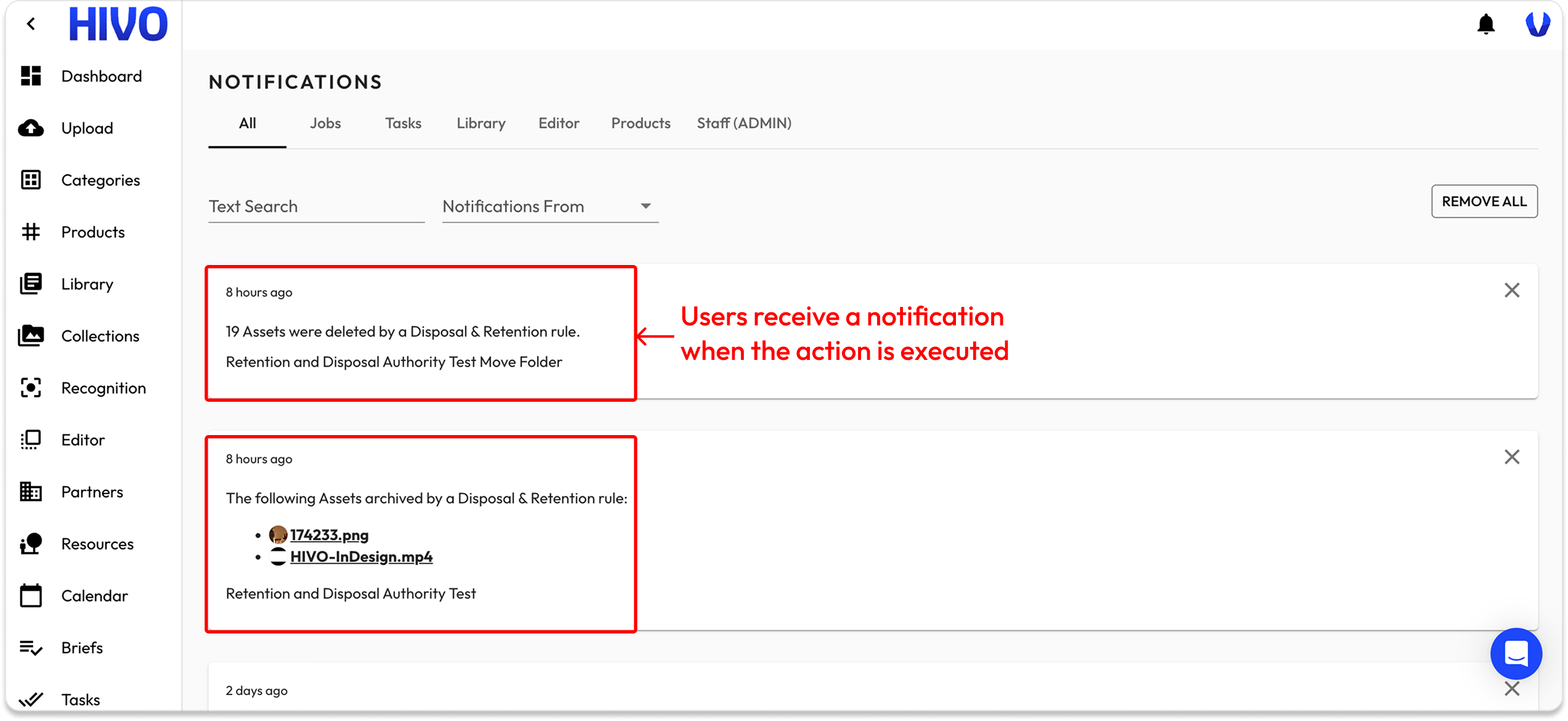
* **Notify when Action is complete:** After the system completes the action, a confirmation notification will be sent.
If you have any questions, don't hesitate to ask, we're always here to help!
---
# Agent Instructions
This documentation is published with GitBook. GitBook is the documentation platform designed so that both humans and AI agents can read, navigate, and reason over technical content effectively. Learn more at gitbook.com.
## Querying This Documentation
If you need additional information that is not directly available in this page, you can query the documentation dynamically by asking a question.
Perform an HTTP GET request on the current page URL with the `ask` query parameter, and the optional `goal` query parameter:
```
GET https://support.hivo.co/client-profile/client-profile-settings/organisation-and-storage/disposal-and-retention-settings.md?ask=&goal=
```
`ask` is the immediate question: it should be specific, self-contained, and written in natural language.
`goal` is optional and describes the broader end goal you are ultimately trying to accomplish on behalf of the user. GitBook uses it to tailor the answer towards what is most useful for that goal.
The response will contain a direct answer to the question and relevant excerpts and sources from the documentation.
Use this mechanism when the answer is not explicitly present in the current page, you need clarification or additional context, or you want to retrieve related documentation sections.