> For the complete documentation index, see [llms.txt](https://support.hivo.co/llms.txt). Markdown versions of documentation pages are available by appending `.md` to page URLs; this page is available as [Markdown](https://support.hivo.co/client-profile/client-profile-settings/asset-and-metadata-management/duplicate-manager-settings.md).
# Duplicate Manager Settings
Manage and handle duplicate files efficiently
## What are Duplicate Manager Settings?
**Duplicate Manager Settings** is the configuration section that allows user to **manage and handle duplicate files during the upload process**. This helps users control storage, reduce data clutter, and maintain consistency in their digital asset library
Benefits of using Duplicate Manager Settings
* ***Reduce data clutter & save storage space**: Prevent unnecessary duplicate uploads, helping you optimize storage capacity.*
* ***Easier search & management**: Each piece of content has only one “master” copy, minimizing confusion.*
* ***Maintain consistency**: Avoid situations where different teams work on different copies of the same file.*
#### 👉 Duplicate Manager Settings include:
Find, manage, and process duplicate or similar assset
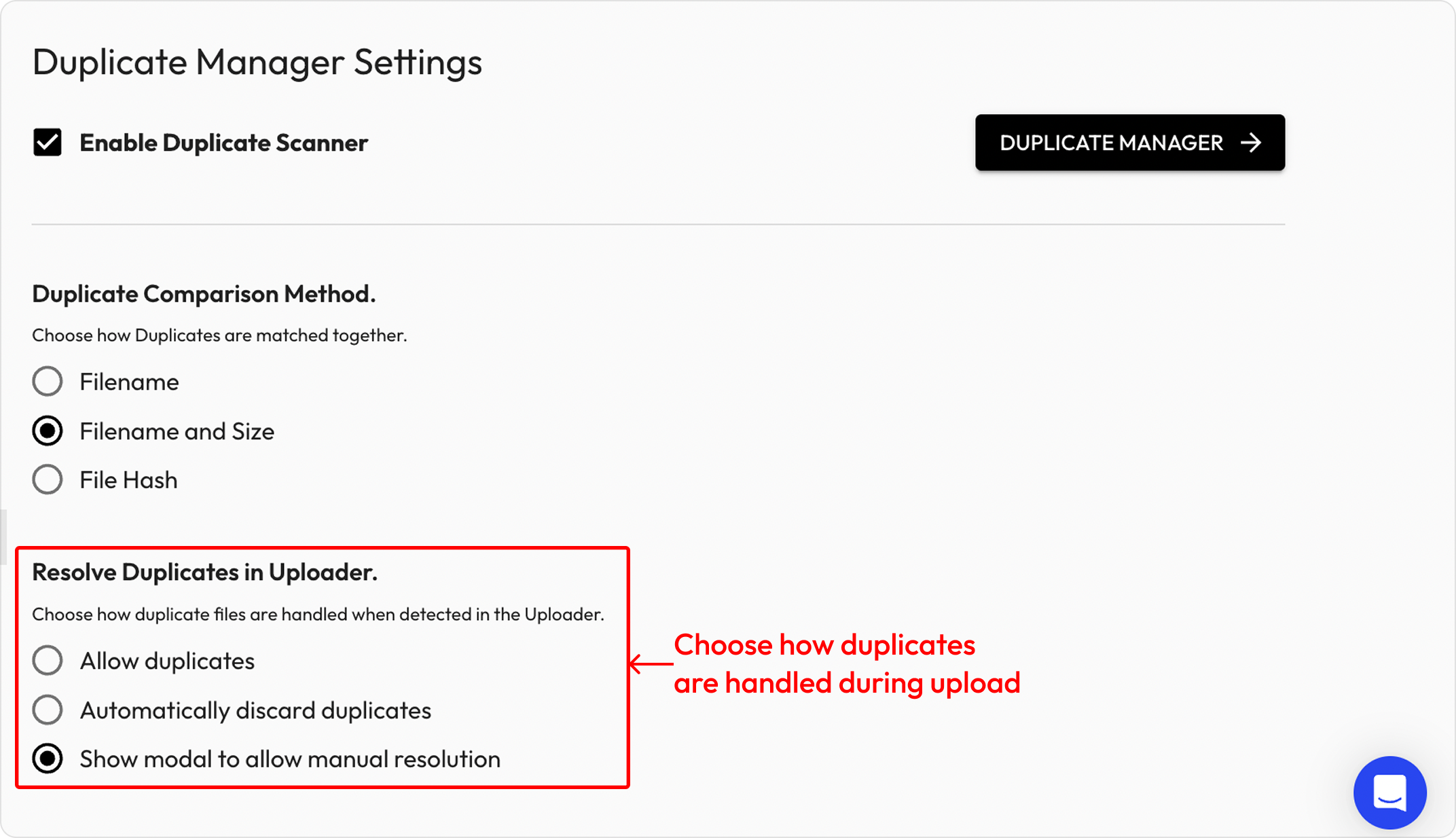
## 1. How to set up Duplicate Scanner for uploading assets
⚠️ **User Right Required:** User must have the permission: **“Is Client Admin - User can manage the Client Profile”**
#### 🔹 Step 1: **Enable Duplicate Scanner**
* *Go to* **Duplicate Manager Settings***:* **Client Profile → Settings → Duplicate Manager Settings**
* When enabled, the system automatically checks the files being uploaded and compares them to existing files to avoid redundant storage and lets user decide how to handle them.
#### 🔹 Step 2: Duplicate Comparison Method
This section allows you to choose how the system compares and determines whether files match each other. Select one of the three following methods:
* **Filename:** The system checks based solely on the file name. If a newly uploaded file shares the exact same name as an existing file, the system considers it a duplicate.
* **Filename and Size:** The system cross-references both the file name and the file size simultaneously. A file is only flagged as a duplicate if it matches both criteria.
* **File Hash:** The system checks the unique identification string (Hash code) of the file's content.
#### 🔹 Step 3: **Resolve Duplicates in Uploader (**choose how duplicates are handled during upload)
In **Resolve Duplicates in Uploader**, choose one of the three modes:
* **Allow duplicates** – Allow uploading even if duplicates exist.
* **Automatically discard duplicates** – Automatically skip duplicate files and do not upload them.
* **Show modal to allow manual resolution** – Display a dialog so you can manually decide how to handle each case.
When this option "**Show modal to allow manual resolution"** is selected, the system grants full control to the user by prompting an interactive warning dialog (Modal) rather than taking automated actions.
**How it works:**
* When duplicates are detected, the system shows a modal with comparison details (e.g., file name, existing uploader, etc.).
* Workflow Enforcement - Require a decision before closing duplicate warning: When this box is checked, users **must choose how to resolve detected duplicates** (make an explicit choice) before they can dismiss or close the warning dialog. Users cannot simply click away or close the modal to ignore the warning.
* In the modal, users can choose actions either for **individual assets** or for **all uploading assets** at once:
* *Keep Duplicate Asset/ Keep All*
* *Discard Duplicate Asset/ Clear All*
* *Add as new version to the existing asset/ Add as new version for all*
* *Replace the existing asset with the incoming file/ Replace all*
## 2. How to Use Duplicate Manager
Duplicate Manager is a tool that helps you find, manage, and process **duplicate or similar assset** in your digital asset library.
#### 🔹 **Step 1: Access the Duplicate Manager page**
*Client Profile → Settings → Duplicate Manager Settings →* **Duplicate Manager**
#### 🔹 **Step 2: View the List of Duplicates**
On the screen, you'll see two main tabs:
* **EXACT DUPLICATES:** Displays assets that are technically identical (same size, same content).
* **SIMILAR IMAGES**: Shows images with high visual similarity, even if they differ in size or format.
#### 🔹 **Step 3: Review and Choose a Resolution Option**
In the EXACT DUPLICATES tab (do the same with Similar Images): Open each item detail to compare and choose how to resolve, including the following actions: **Accept, Merge, Remove**.
* **MERGE:** Combines the duplicate assets into a single one. The system will keep one original version and delete the rest, which helps you save storage space.
* **REMOVE:** Permanently deletes the selected assets from your library.
* **ACCEPT:** Keeps all the selected assets. Assets marked as **Accepted** will be managed under **Accepted Duplicates** (*These Assets have been marked as unique and won't be flagged in future duplicate scans).* Click Accepted Duplicates to view assets marked as duplicates
If you encounter any issues, contact the support team for assistance.
---
# Agent Instructions
This documentation is published with GitBook. GitBook is the documentation platform designed so that both humans and AI agents can read, navigate, and reason over technical content effectively. Learn more at gitbook.com.
## Querying This Documentation
If you need additional information that is not directly available in this page, you can query the documentation dynamically by asking a question.
Perform an HTTP GET request on the current page URL with the `ask` query parameter, and the optional `goal` query parameter:
```
GET https://support.hivo.co/client-profile/client-profile-settings/asset-and-metadata-management/duplicate-manager-settings.md?ask=&goal=
```
`ask` is the immediate question: it should be specific, self-contained, and written in natural language.
`goal` is optional and describes the broader end goal you are ultimately trying to accomplish on behalf of the user. GitBook uses it to tailor the answer towards what is most useful for that goal.
The response will contain a direct answer to the question and relevant excerpts and sources from the documentation.
Use this mechanism when the answer is not explicitly present in the current page, you need clarification or additional context, or you want to retrieve related documentation sections.



.png?alt=media&token=364e7ce1-6ba3-46c7-b399-f3f5cfe08b23)


