> For the complete documentation index, see [llms.txt](https://support.hivo.co/llms.txt). Markdown versions of documentation pages are available by appending `.md` to page URLs; this page is available as [Markdown](https://support.hivo.co/assets/asset-full-screen-mode.md).
# Asset Full Screen mode
Asset-focused mode, which helps users monitor and manage the collaboration process
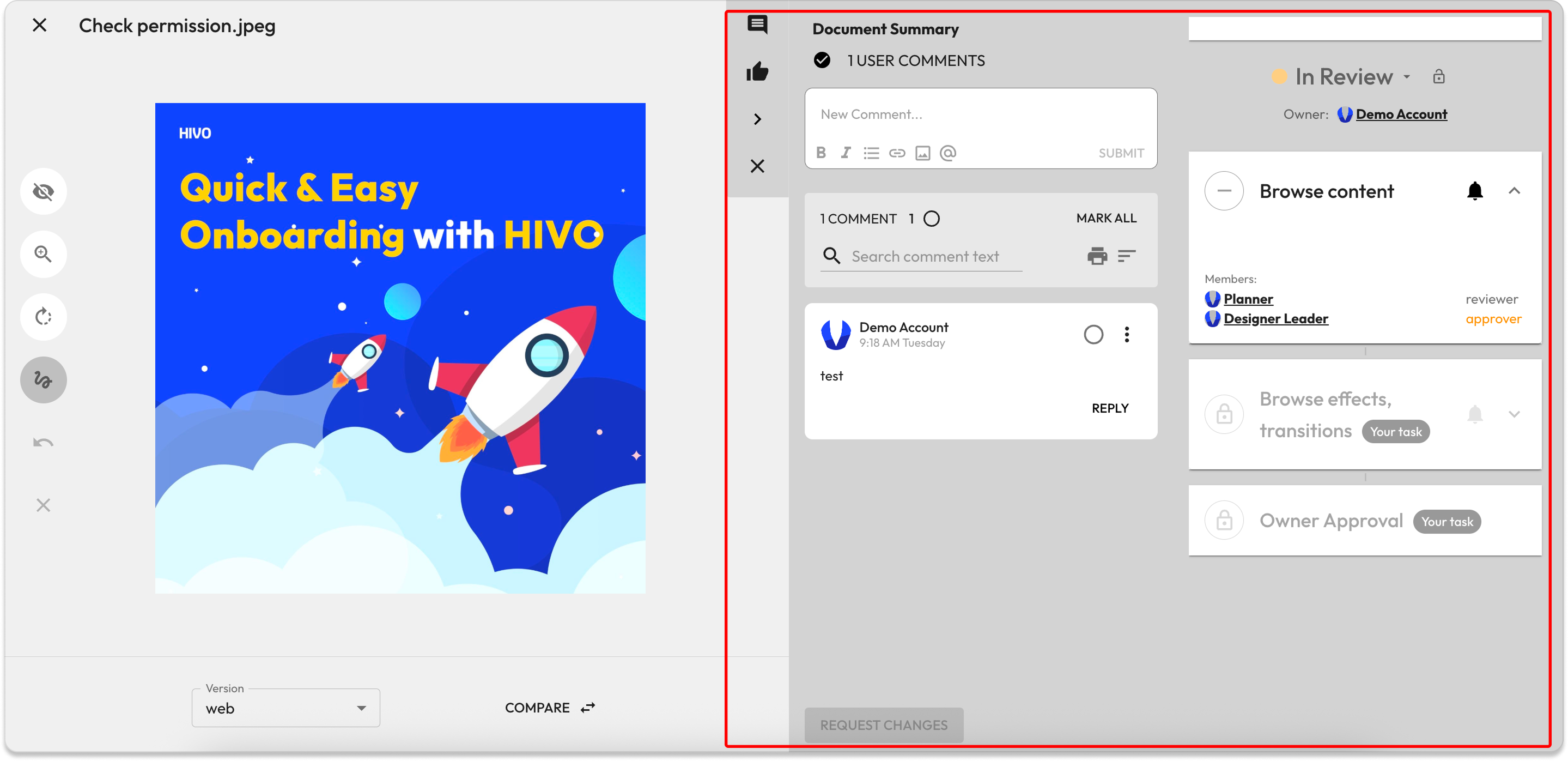
HIVO's Full Screen View is designed for **detailed checking, marking locations and requesting adjustments, and focused tracking of the approval process** on a specific asset.
* To navigate Full Screen mode, from the Asset Detail page, select the full-screen icon (next to the version name).
* To exit Full Screen mode, use the **"ESC" shortcut key** or click the **"X" icon** in the top left corner (next to the asset name).
👉 The Full Screen mode is organized into key areas, each serving a specific function:
#### **🔹 Asset Preview**
* Asset Preview: Allows for the inspection of the asset's quality, color, and detailed content (e.g., checking for spelling errors in images or videos).
* Version Dropdown (e.g., "web"): Allows you to select between different versions of the asset (e.g., the original version, a resized version, a print version).
* [**SMART COMPARE**](https://support.hivo.co/approvals/smart-compare)**:** Compares the current version with another version, enabling users to evaluate the changes between the two versions (e.g., comparing the original version with the color-corrected version)
#### **🔹** Left Sidebar Toolbar
This toolbar supports annotation and provides tools including:
* **Hide Existing** (Eye icon): Hides all previously added annotations.
* **Annotation Tools**: Provides tools for drawing, highlighting, adding text directly onto the image, and a measure tool. This feature allows users to precisely indicate the location requiring edits or points of attention on the asset before submitting feedback.
* **Rotate**: Allows the asset to be rotated 90 degrees clockwise (to the right).
* **Undo**: Allows undoing or redoing the recently performed annotation actions.
* **Clear** (X icon): Deletes the markings and comments currently being made/in progress.
#### **🔹** Request and Approval management area
The right section supports communication and approval workflow management:
* **Comment management:** Click on the marked location on the asset to view the corresponding comment.
* **Approval Workflow Management:** Track and manage the approval process, including requests for adjustments/edits.
If you have any questions, don't hesitate to ask, we're always here to help!
---
# Agent Instructions
This documentation is published with GitBook. GitBook is the documentation platform designed so that both humans and AI agents can read, navigate, and reason over technical content effectively. Learn more at gitbook.com.
## Querying This Documentation
If you need additional information that is not directly available in this page, you can query the documentation dynamically by asking a question.
Perform an HTTP GET request on the current page URL with the `ask` query parameter, and the optional `goal` query parameter:
```
GET https://support.hivo.co/assets/asset-full-screen-mode.md?ask=&goal=
```
`ask` is the immediate question: it should be specific, self-contained, and written in natural language.
`goal` is optional and describes the broader end goal you are ultimately trying to accomplish on behalf of the user. GitBook uses it to tailor the answer towards what is most useful for that goal.
The response will contain a direct answer to the question and relevant excerpts and sources from the documentation.
Use this mechanism when the answer is not explicitly present in the current page, you need clarification or additional context, or you want to retrieve related documentation sections.


.png?alt=media&token=0ebf0b9f-2cfe-4a05-b919-214ed906ec3f)